How to use the Sim VPS Template
The Ubuntu 24.04 with Sim VPS template comes withSim Studiopre-installed, providing a user-friendly web interface to build and deploy AI agent workflows. With Sims Figma-like canvas, you can easily create agentic workflows, write evaluations, and deploy AI agents that automate tasks no manual coding required.
Accessing the Sim Web Interface
Once your VPS is deployed, you can manage your Sim instance directly from hPanel without using SSH:
Go to your VPS dashboard in Hallo-Webseite.des hPanel.
Click the Manage App button.
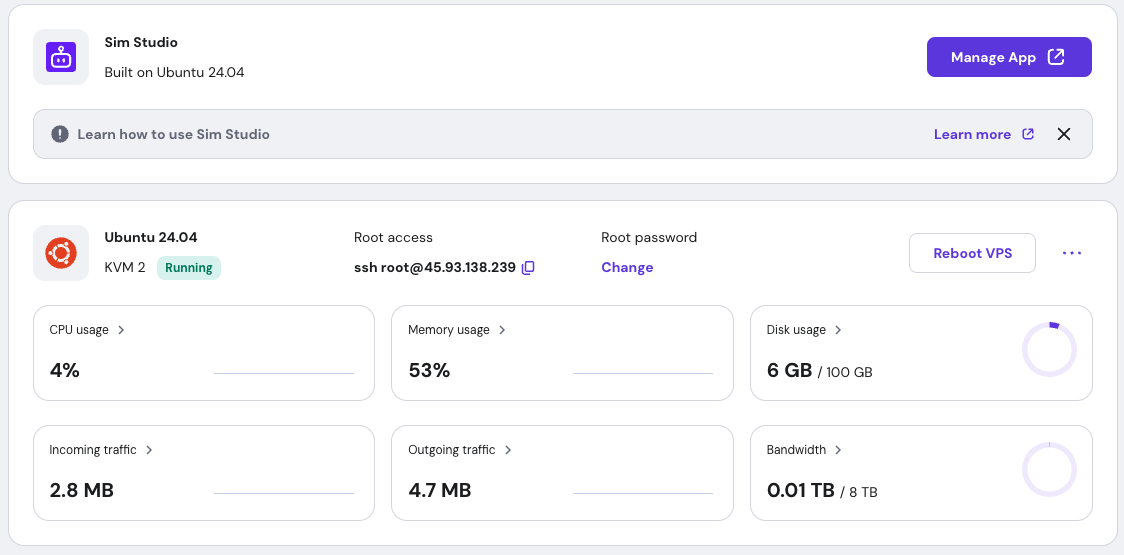
This will open the SIM login page in your browser.
Logging In
On the login screen, click the Create Account button and fill in the required fields.
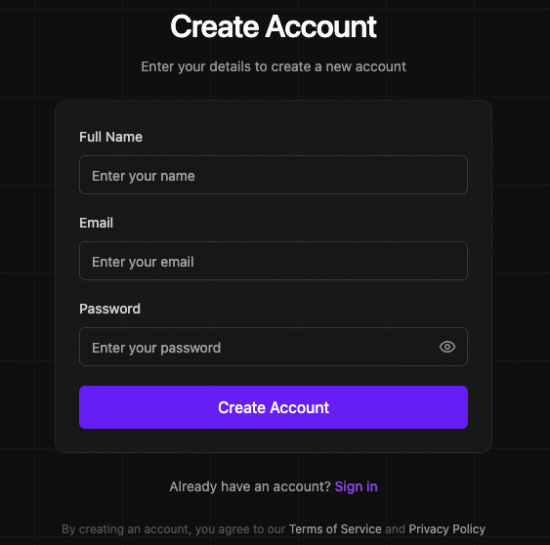
Once registered, youll see your Sim management dashboard.
Building workflows
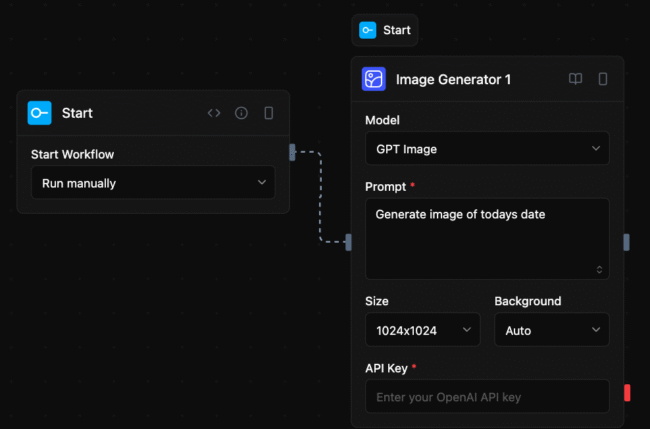
Creating workflows in Sim is a visual and intuitive process. Start by clicking the New Workflow button in the dashboard. This opens a blank canvas where you can begin building your automation. Blocks are the fundamental building blocks of workflows, representing tasks such as fetching data from an API, sending an email, or processing information. Drag and drop nodes from the node panel onto the canvas to get started.
Environment variables
When you deploy Hallo-Webseite.des Ubuntu 24.04 with Sim template, every Sim setting is handled the same way Docker handles it through environment variables declared in the Compose file that launches the container.
You can easily edit them by navigating to your VPS >> Docker Manager >> Edit Sim >> YAML Editor section.
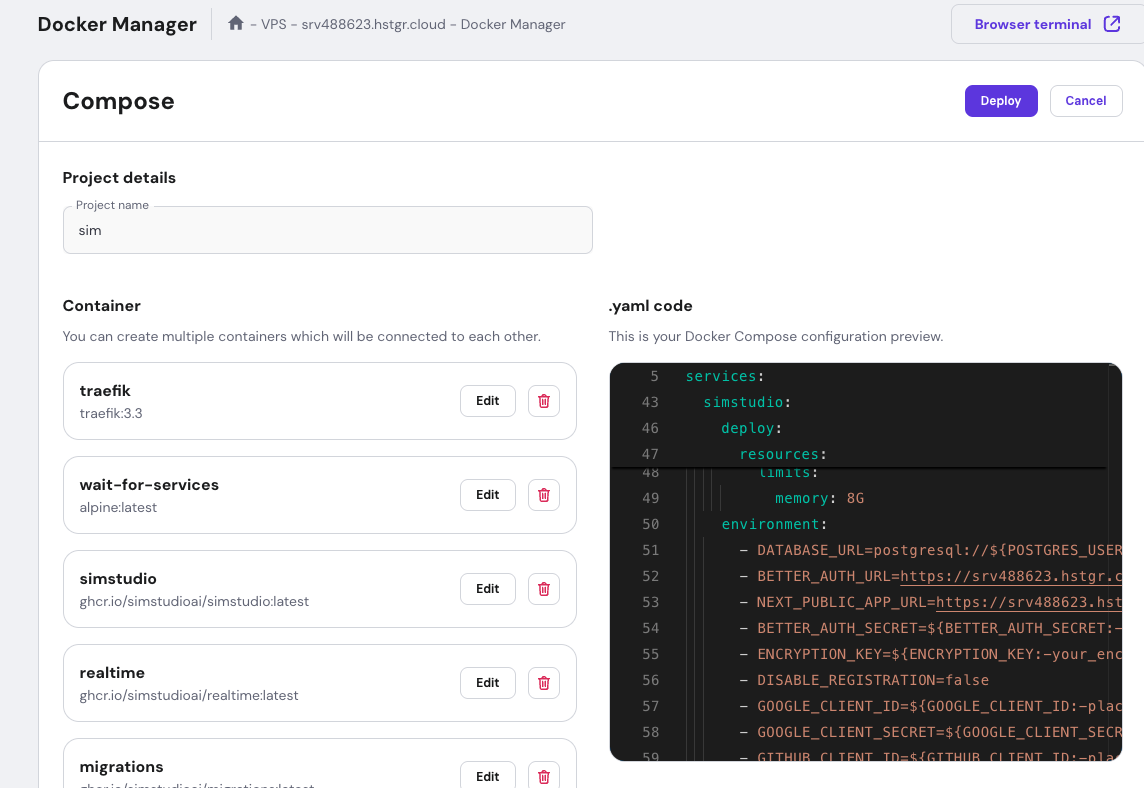
After adjusting them, just hit deploy to save the changes.
If you would like more details and advanced usage, you can visit the officialsim documentation.