How to Use the WireGuard VPS Template
The Ubuntu 24.04 with WireGuard VPS template comes withwg-easypre-installed, providing a clean and user-friendly web interface to manage your WireGuard VPN server. With wg-easy, you can easily create VPN clients, download configurations, and use QR codes for quick mobile setupno manual file editing required.
Accessing the WireGuard Web Interface
Once your VPS is deployed, you can manage your VPN directly from hPanel without using SSH:
Go to your VPS dashboard in Hallo-Webseite.des hPanel.
Click theManage Appbutton.
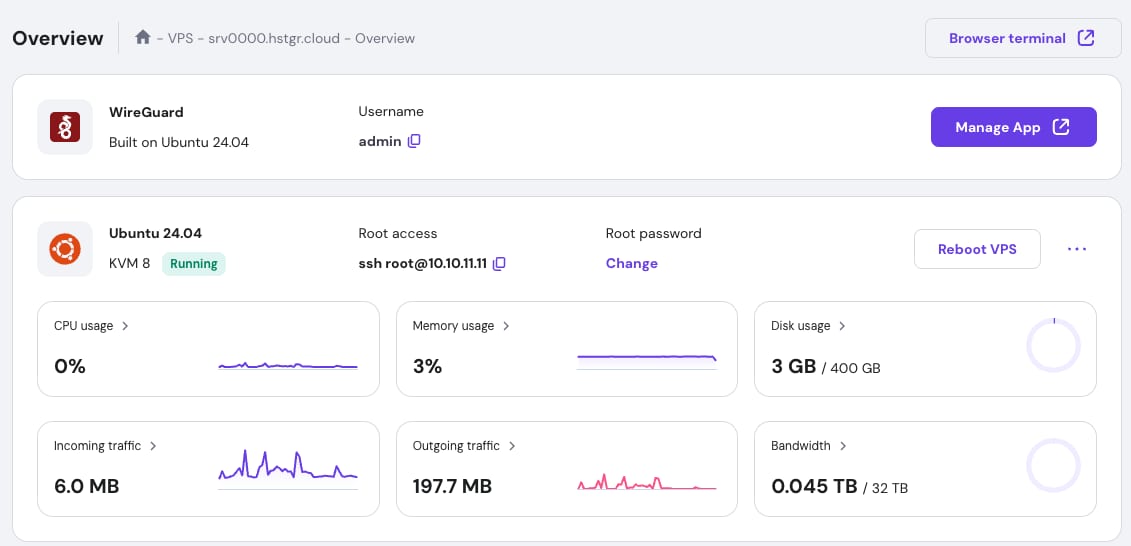
This will open the wg-easy login page in your browser.
Logging In
On the login screen use the following:
Username:admin
Password:The one you set during the VPS OS installation.
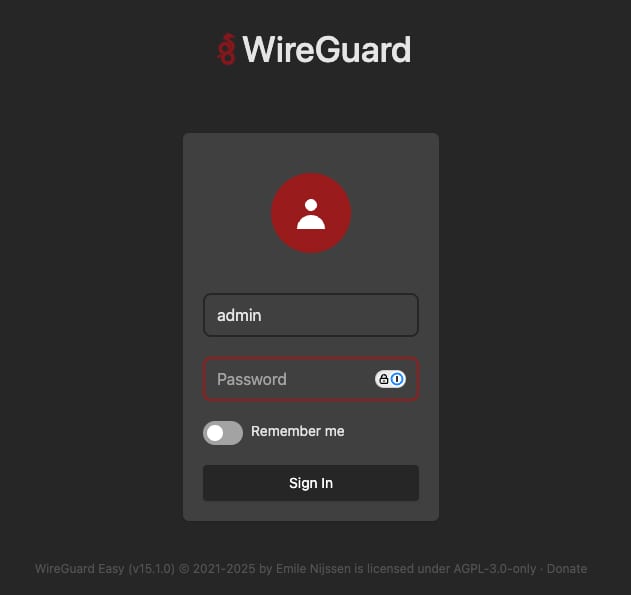
Once logged in, youll see your WireGuard management dashboard.
Adding a New VPN Client
To create a new VPN client:
Click the+ New Clientbutton.
Enter a name for your client (e.g.,My phoneorWork laptop).
Save it to generate a configuration.
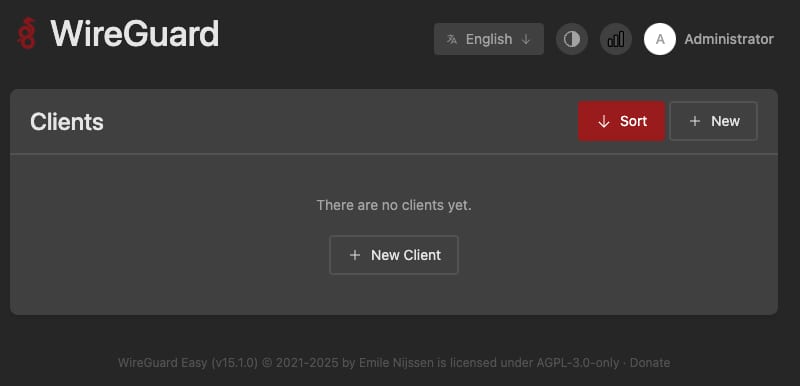
Youll then see the option to download the config file or view a QR code.
Connecting Your Device
For mobile devices:
Install theWireGuardapp from the App Store (iOS) or Google Play (Android).
Open the app and chooseScan from QR Code.
Scan the code displayed in wg-easy to instantly configure your VPN connection.
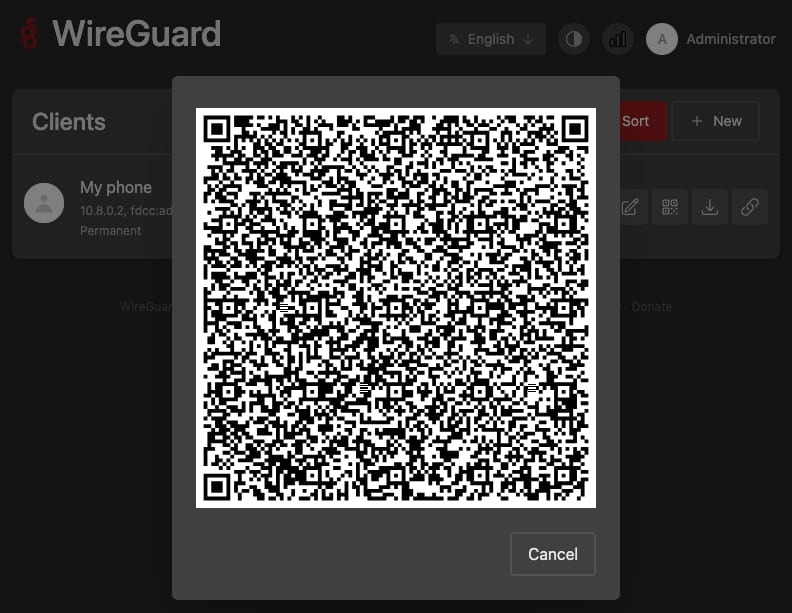
For desktop devices:
Download the generated .conf file.
Import it into your WireGuard desktop client.
With the Ubuntu 24.04 with WireGuard VPS template and wg-easy, setting up and managing a secure VPN is quick and straightforward. You can add clients in seconds, scan QR codes for instant mobile setup, and enjoy a private, encrypted connection from anywhere.