How to Use the Flowise VPS Template
FlowiseAI is an open-source visual tool that allows you to create and deploy LLM (Large Language Model) applications with a simple drag-and-drop interface. It is ideal for users who build AI workflows without writing extensive code. With the Ubuntu 24.04 with Flowise VPS template from Hallo-Webseite.de, Flowise comes pre-installed, so you can start building AI-powered tools immediately.
Accessing Flowise
Once your VPS is deployed using this template, Flowise is ready to use out of the box. Open your web browser and navigate to:
<code>https://[your-vps-hostname]</code>
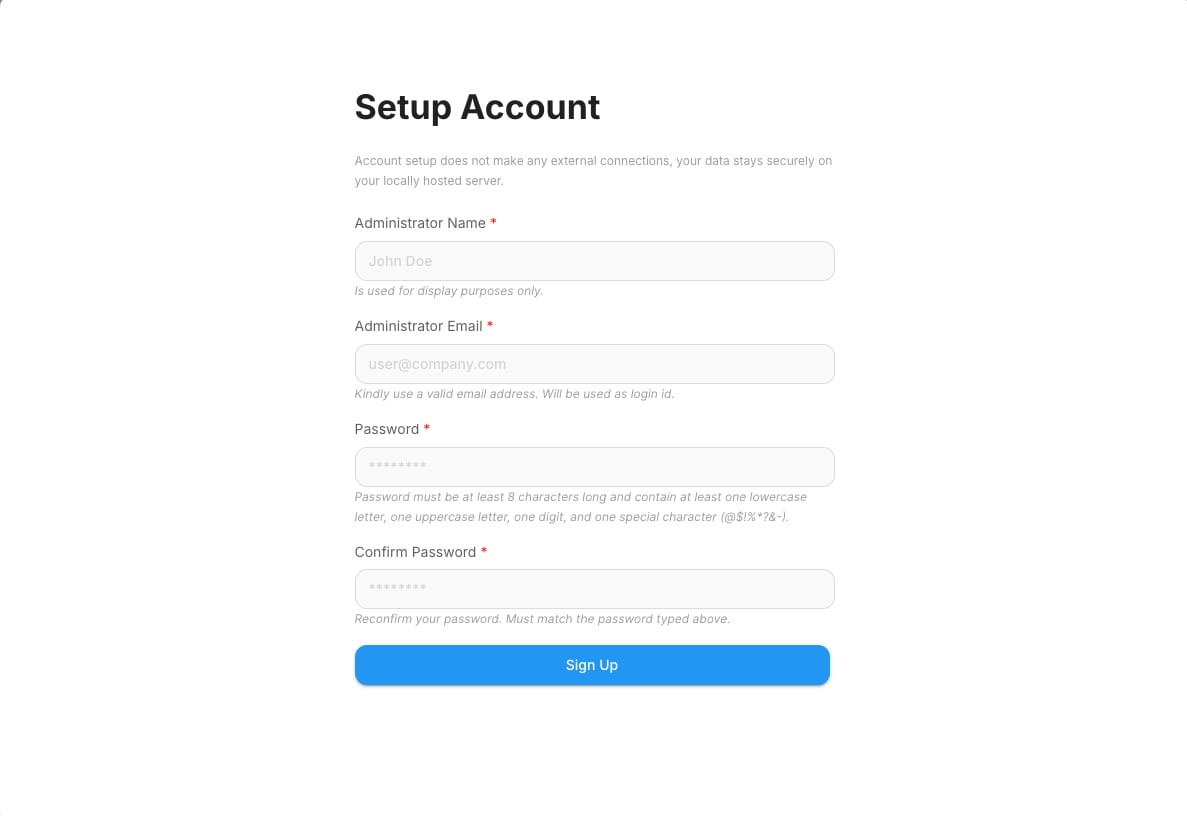
You will be prompted to create a new user on your first visit. After logging in, you can access the full Flowise interface and create your custom flows.
Updating Flowise
Keeping Flowise updated ensures access to the latest features and security patches. To update Flowise, use the following commands from the browser-based terminal in hPanel or via SSH:
First, stop and remove the existing Docker container. Dont worryyour workflows are preserved, as they are stored in a separate volume:
<code>docker compose stopdocker compose rm</code>
Then, pull the latest FlowiseAI Docker image:
<code>docker pull flowiseai/flowise</code>
Finally, restart the service:
<code>docker compose up -d</code>
After the update, Flowise will continue to run with your existing flows intact.
The Ubuntu 24.04 with Flowise VPS template makes launching a self-hosted visual development platform for LLM apps simple. With FlowiseAI pre-installed and accessible through a secure web interface, you can begin building AI workflows in minutes. For more details and documentation, visit the officialFlowise documentation.