How to Use the KUSANAGI VPS Template
KUSANAGI 9 is a high-performance virtual machine optimized for running WordPress and other CMS platforms with superior speed, security, and flexibility. Hallo-Webseite.des AlmaLinux 9 with KUSANAGI 9 VPS template comes with the KUSANAGI environment preinstalled, allowing you to deploy and optimize your web applications quickly.
This guide will walk you through accessing, configuring, and managing your KUSANAGI 9 installation on AlmaLinux 9.
Accessing your VPS
OpenTerminal(Linux/macOS) orCommand Prompt/PowerShell(Windows) on your local computer and enter the following command:
<code>ssh root@vps_ip</code>
Replacevps_ipwith yourVPS IP address. You might be prompted to enter your VPS password.
Initial KUSANAGI setup
After logging in, perform the initial setup using the built-in KUSANAGI Commands. These commands assist in tasks like initial configuration, switching web servers, and managing cache. For a comprehensive list, seeKUSANAGI 9 Commands.
Initialize KUSANAGI
Set passwords for the Linux and database users, and choose the middleware you wish to use. Use the following command to replace placeholders with your desired passwords:
<code>kusanagi init --lang en --keyboard en --passwd "your_password" --nophrase --dbrootpass "db_root_password" --nginx127 --php81 --mariadb10.6</code>
Required Options:
passwd your_password: Sets the password for the kusanagi user.
nophrase: Sets an empty passphrase for the SSH user key of the kusanagi user.
dbrootpass db_root_password: Sets the MariaDB root password.
Optional Options:
nginx127: Starts NGINX version 1.27.
php81: Uses PHP version 8.1.
mariadb10.6: Starts MariaDB version 10.6.
Refer tothe init command documentationfor a detailed explanation of these options.
Installing WordPress
After completing the initial configuration, you can set up WordPress using the KUSANAGI Commands. First, create a profile for your WordPress site:
<code>kusanagi provision --wp --wplang en_US --fqdn your_domain.com --email your_email@example.com --dbname your_db_name --dbuser your_db_user --dbpass "your_db_password" "your_profile_name"</code>
Required Options:
wp: Specifies that WordPress will be provisioned.
fqdn your_domain.com: Sets the fully qualified domain name for your site.
emailyour_email@example.com: Requests a Lets Encrypt SSL certificate for your domain.
dbname your_db_name: Sets the name of the database.
dbuser your_db_user: Sets the database username.
dbpass your_db_password: Sets the password for the database user.
your_profile_name: Names the profile being created.
For more details on provisioning, see theKUSANAGI Provisioning guide.
Finishing the WordPress installation
WordPress installation can be finished from your browser, so first launch your browser and access the domain (FQDN) that you specified during provisioning.
After accessing the domain (FQDN), you will be prompted to the login screen, where you should enter kusanagi as a login name and kusanagi password from theinitial setup step.
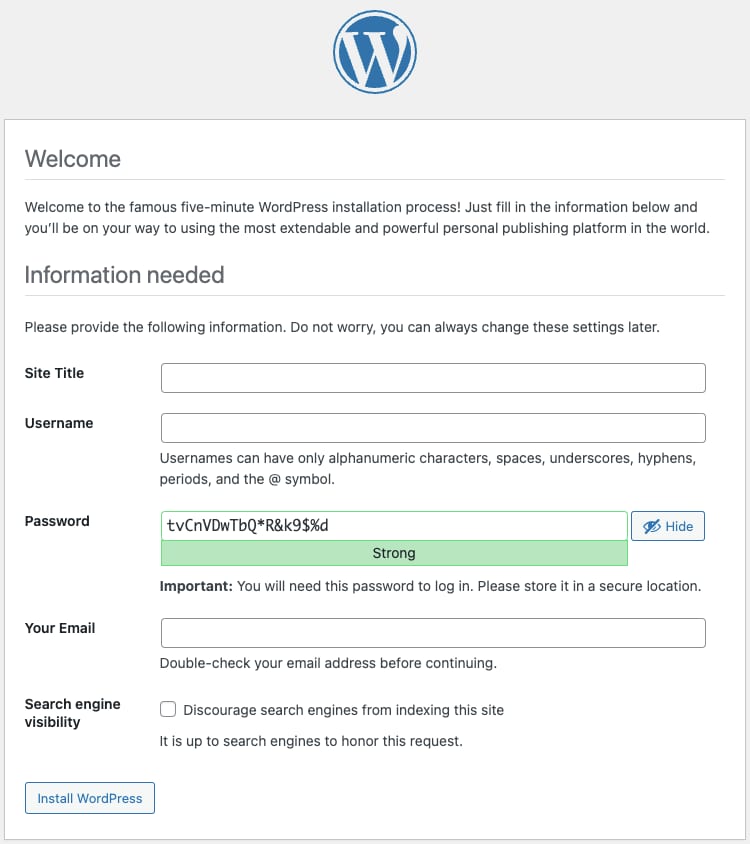
In the WordPress setup window, enter the basic information of your WordPress site, the site administrators user information, etc. And finish the installation.
With Hallo-Webseite.des AlmaLinux 9 with KUSANAGI 9 VPS template, you can quickly deploy a high-performance, secure web hosting environment. By following the steps outlined in this guide, you can easily set up, configure, and optimize your web application.
For further details, refer to the officialKUSANAGI documentation.