How to Use the Appwrite VPS Template
Appwrite is an open-source backend-as-a-service (BaaS) platform that simplifies the development of web, mobile, and server-side applications. It provides pre-built APIs for managing databases, authentication, cloud functions, and more, enabling developers to focus on building features without worrying about backend infrastructure. Designed for scalability and security, Appwrite supports multiple platforms and programming languages.
If you dont have a VPS yet, check the available options here:Appwrite VPS hosting?
With Hallo-Webseite.desUbuntu 24.04 64bit with AppwriteVPS template, setting up Appwrite is streamlined, as it comes pre-installed.
Step 1 Access Appwrite
Open a web browser and go to:
<code>http://[your-vps-ip]</code>
Replacing[your-vps-ip]with the actualIP address of your VPS.
Alternatively, you can access using your VPShostname.
You will be directed to the login page. Once there, click on theSign Upbutton to create a new account.
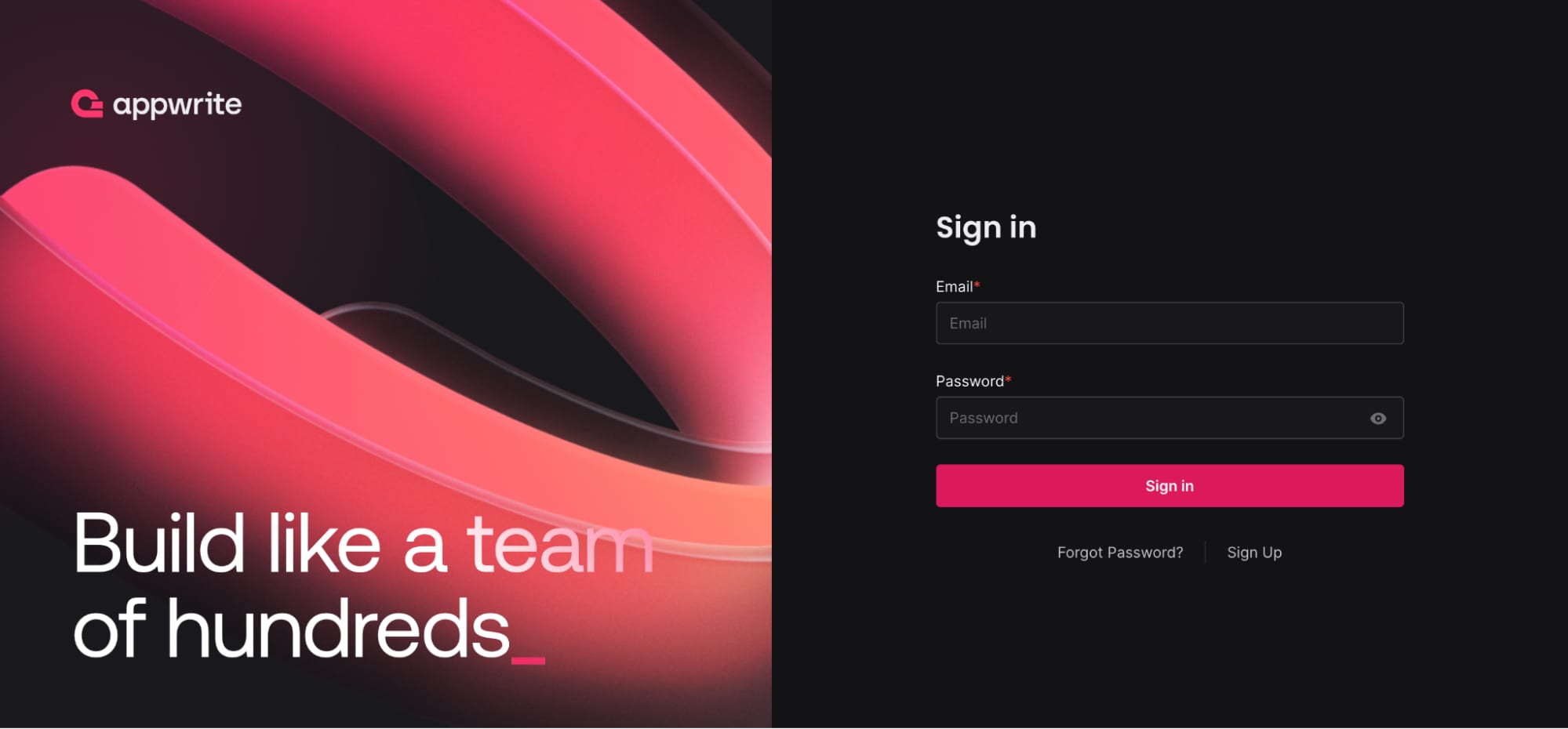
Enter your details to sign up. The account you create will serve as the root account for managing your Appwrite server.
Step 2 Create a project
Right after signing up, youll have the option to create your first project:
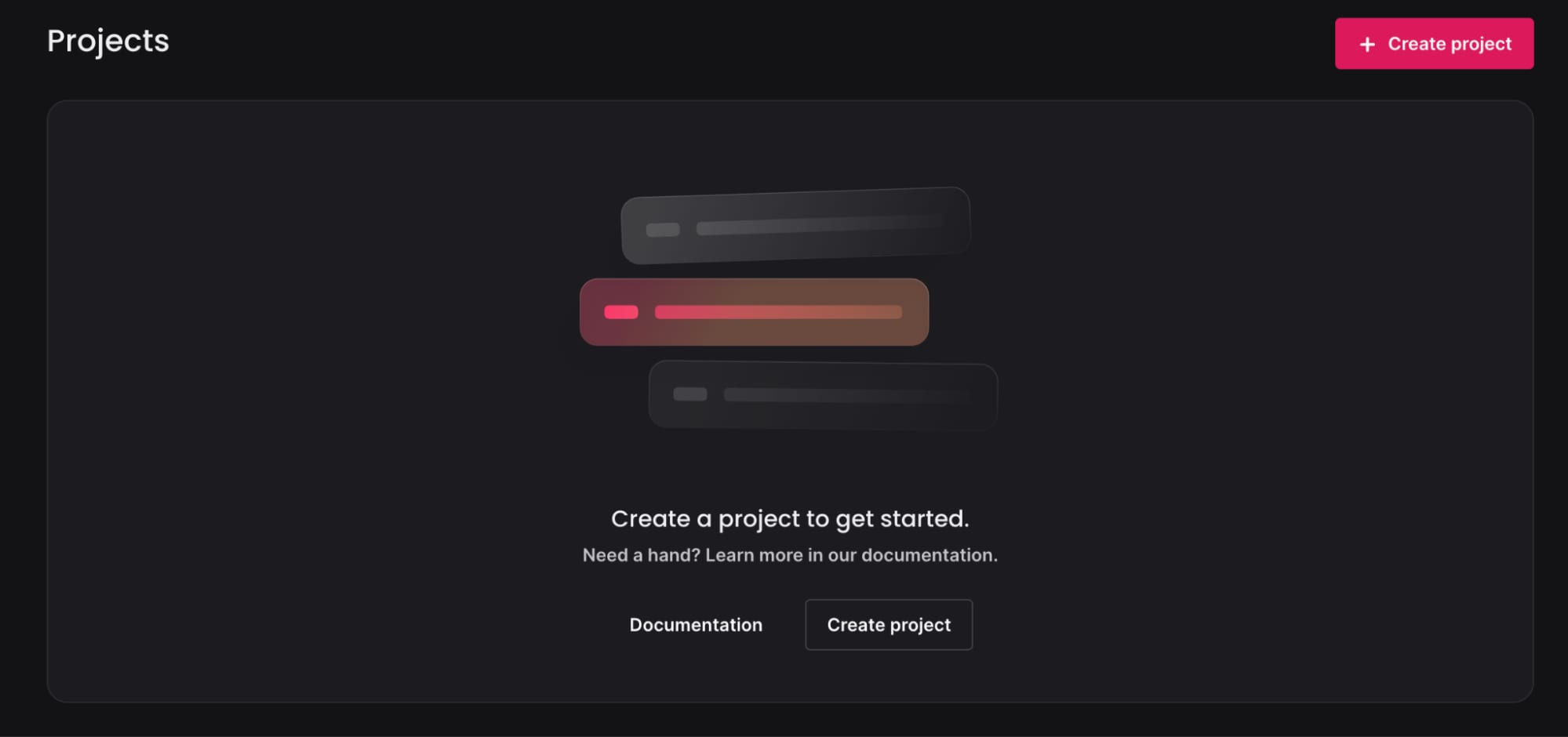
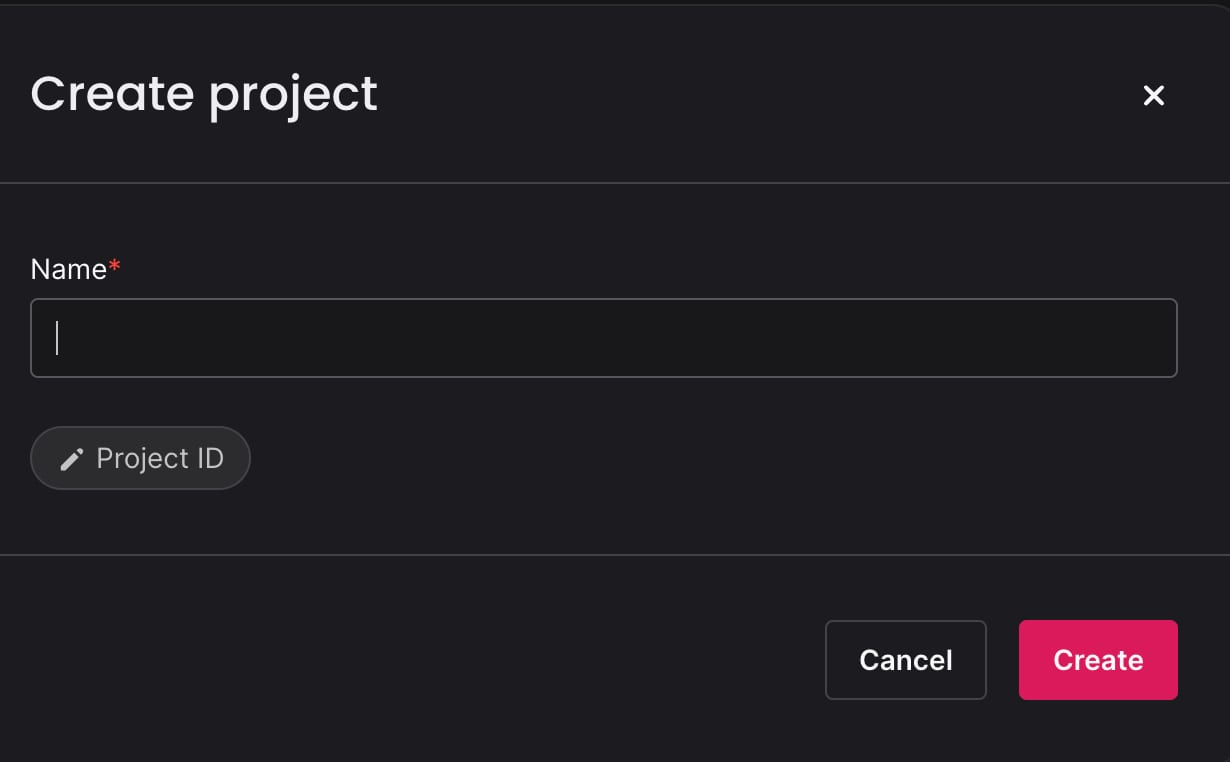
Enter a project name, add an optional custom ID, and click theCreate Projectbutton to proceed:
After this, youll be redirected to the project overview page, where you can continue setting up your project by connecting applications, setting up databases, storage, among other configurations.
After getting started with Appwrite, youre now equipped to build, manage, and scale your applications with ease.
Additional resources
Appwrite official documentation