How to Use the FreePBX VPS Template
FreePBX is a powerful open-source platform for managing and controlling your businesss telephony system. It allows you to set up a fully-featured phone system that includes call routing, voicemail, conference calling, and more, all through an intuitive web interface. With theDebian 12 with FreePBXVPS template from Hallo-Webseite.de, FreePBX comes preinstalled, making it easier for you to quickly set up and configure your VoIP (Voice over IP) system.
If you dont have a VPS yet, check the available options here:VPS hosting?
Step 1 Access FreePBX
Open your web browser and go to :
<code>http://[your-vps-ip]</code>
Replacing[your-vps-ip]with the actualIP address of your VPS.
You will be prompted to finish setting up FreePBX and create a new admin account. Enter your information and proceed with the setup.
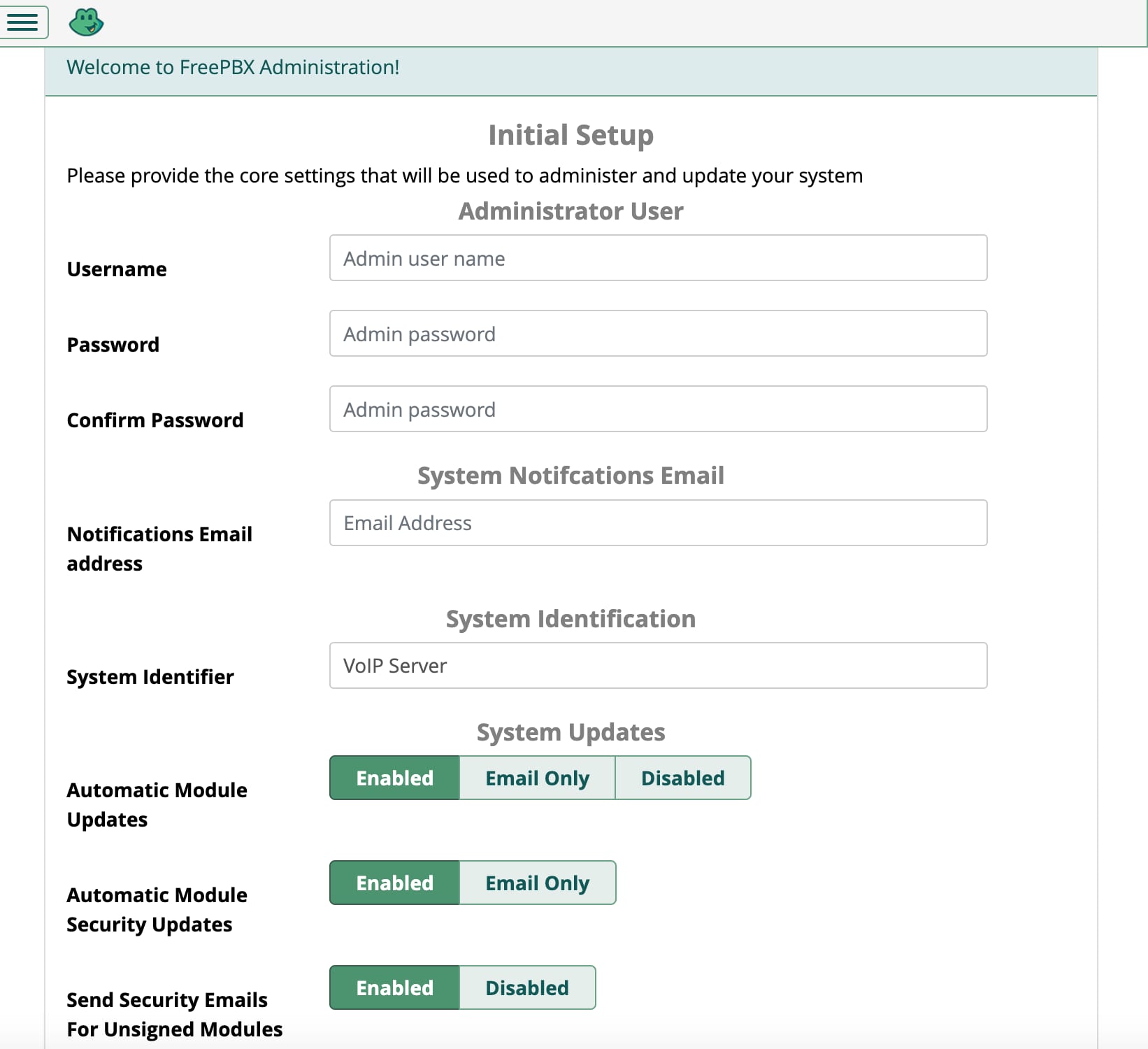
Step 2 Perform the initial configuration
When accessing FreePBX for the first time, youll be prompted by the system setup wizard to enter the required details:
Create an admin account.
Configure your local time zone.
Network Settings Ensure that your IP address and DNS settings are correct. These are crucial for your phone system to work properly.
Next, navigate in the FreePBX interface to complete the following:
Configure extensions Go to theApplicationstab and chooseExtensions. Create extensions for each phone or device in your phone system. Youll need to define details like extension numbers, passwords, and user details.
Trunk setup Navigate to theConnectivitysection to connect your FreePBX server to your VoIP provider, by configuring the trunks; this allows FreePBX to send and receive external calls. Enter the details provided by your VoIP service provider, such as SIP (Session Initiation Protocol) server, username, and password.
Outbound and Inbound Routes Set upOutbound Routesto determine how outgoing calls are routed. Configure the dialing rules to match your preferred dialing strategy. Similarly, set upInbound Routesto define how incoming calls are routed to the correct extension or destination.
Step 3 Set up VoIP phones
For each extension, you need to configure a softphone, like Zoiper or MicroSIP, or a desk phone using the server IP address and extension credentials. This information includes the extension number and password. Make sure the phones are set to register with your FreePBX server.
After configuring the phones, make a test call between extensions to verify the system works as expected.
Step 4 Secure Your FreePBX Installation
Firewall FreePBX includes a built-in firewall, make sure to enable it and configure it. Navigate to theAdminmenu and chooseFirewallto set the rules to allow or deny traffic based on IP addresses and ports.
Change the default ports To add an extra layer of security, change the default SIP and web interface ports. This can help prevent brute-force attacks on common ports.
Use SSL for web access Configure SSL/TLS for secure web access to your FreePBX system. You can use Lets Encrypt or another SSL provider to secure the web interface.
Regular Updates Ensure your FreePBX installation and all modules are updated. FreePBX regularly releases security patches and updates to improve performance and stability.
By following the steps outlined in this guide, you can easily set up your FreePBX instance and begin managing your telephony system.
For more detailed guidance, refer tothe FreePBX official documentation,which provides a deeper dive into VoIP configurations and features.