How to Use the Ubuntu 24.04 Template With Desktop on VPS
If youre looking to launch a new VPS, considerUbuntu VPS hostingas your option ?
VNC Method
Ubuntu 24.04, with a desktop environment, can be accessed remotely using VNC (Virtual Network Computing). VNC allows users to connect to their VPS from any operating system, providing a graphical interface similar to what you would experience if you were sitting in front of the machine.
To apply this OS template to your server, go to theVPS sectionon hPanel and click on the server you want to manage.
Then, navigate to OS & Panel ? Operating System from the left sidebar. Scroll down to the Change your Operating System section:
Use the search bar to find Desktop
On the Application tab, select Ubuntu 24.04 with Remote Desktop
Click on Change OS
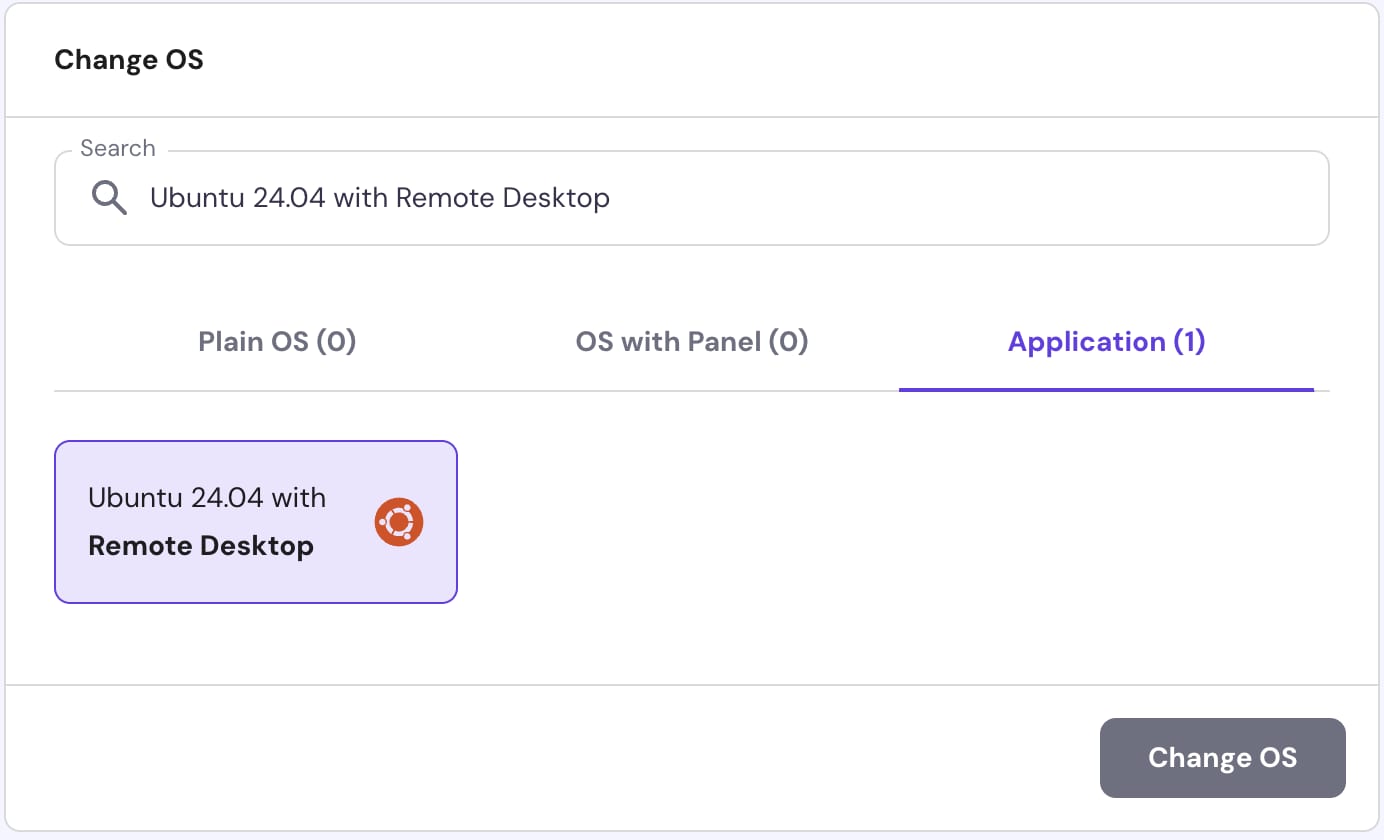
Changing the operating system on your VPS will permanently delete all your current data. If you wish to keep your information, make sure to download a backup via FTP beforehand.
Setting Up VNC
To connect to your VPS using VNC, you will need a VNC client installed on your local computer. The password for both VNC and the default Ubuntu user is the same as the panel password you set. Below are instructions for different operating systems:
Windows
1.Install VNC Viewer:
Visit theRealVNC websiteand download the VNC Viewer for Windows.
Run the installer and follow the on-screen instructions to complete the installation.
2.Connect to VPS:
Launch VNC Viewer.
Enter the IP address of the VPS and use port 5900.
Enter the VNC servers password when prompted.
Click Connect to establish a VNC connection to the remote machine.
Linux
1.Install VNC Viewer:
Follow the instructions on theRealVNC websiteto install the package.
2.Connect to VPS:
Open a terminal and type
vncviewer.Enter the IP address of the VPS and use port 5900.
Enter the VNC servers password when prompted.
macOS
1.Use Built-in VNC Client:
Open Finder, click on the menu Go, then select Connect to Server.
Enter the VPSs IP address and use port 5900.
2.Install Custom VNC Client (Optional):
You can also install a custom client, such asRealVNC Viewer for macOS.
XRDP Method
Ubuntu 24.04, with Remote Desktopwith an XFCE desktop environmentand RDP (Remote Desktop) access,utilizes an XRDP client. This enables users tolog into their VPS using a Windows RDP client, which comes preinstalled on all Windows systems.
XRDP is a free and open-source implementation of Microsoft RDP server that enables operating systems other than Microsoft Windows to provide a fully functional RDP-compatible remote desktop experience.
To apply this OS template to your server, go to theVPS sectionon hPanel and click on theserver you want to manage.
Then, navigate toOS & Panel ? Operating Systemfrom the left sidebar. Scroll down to theChange your Operating Systemsection:
Use the search bar to findDesktop
On theApplicationtab, selectUbuntu 24.04 with Remote Desktop
Click onChange OS
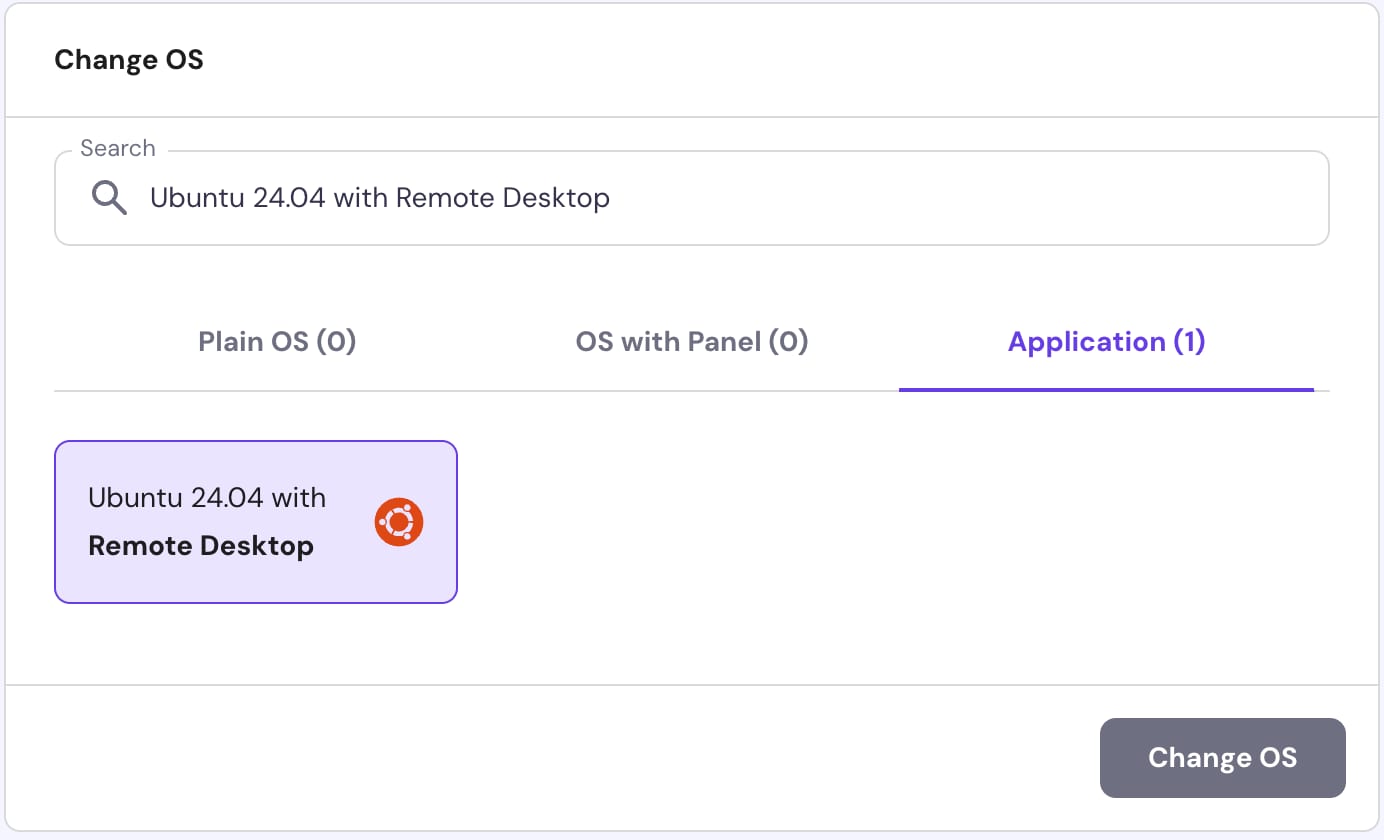
Changing the operating system on your VPS willpermanently deleteall your current data. If you wish to keep your information, make sure todownload a backup via FTPbeforehand.
To connect to your VPS, you will need alocal computer with an RDP client installed. Here are some of the available RDP clients for different operating systems, make sure to have them before going to the next steps:
OnWindows, you can use thedefault Remote Desktop Connectionapplication
OnmacOS, you can use theWindows Appapplication
OnLinux, you can useFreeRDPorRemmina
To log into your VPS, open the RDP application on your computer and enter the XRDP login credentials:
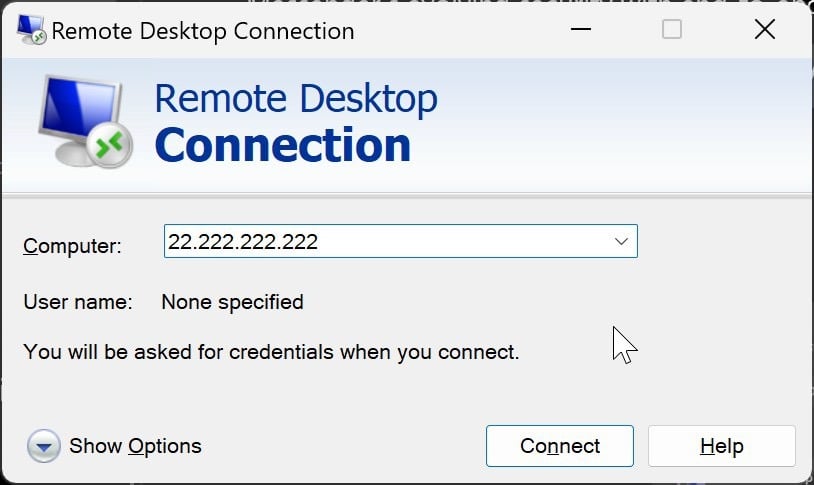
Computer:server IP
Username:root
Password: enter theroot password; if needed, you can reset it from hPanel
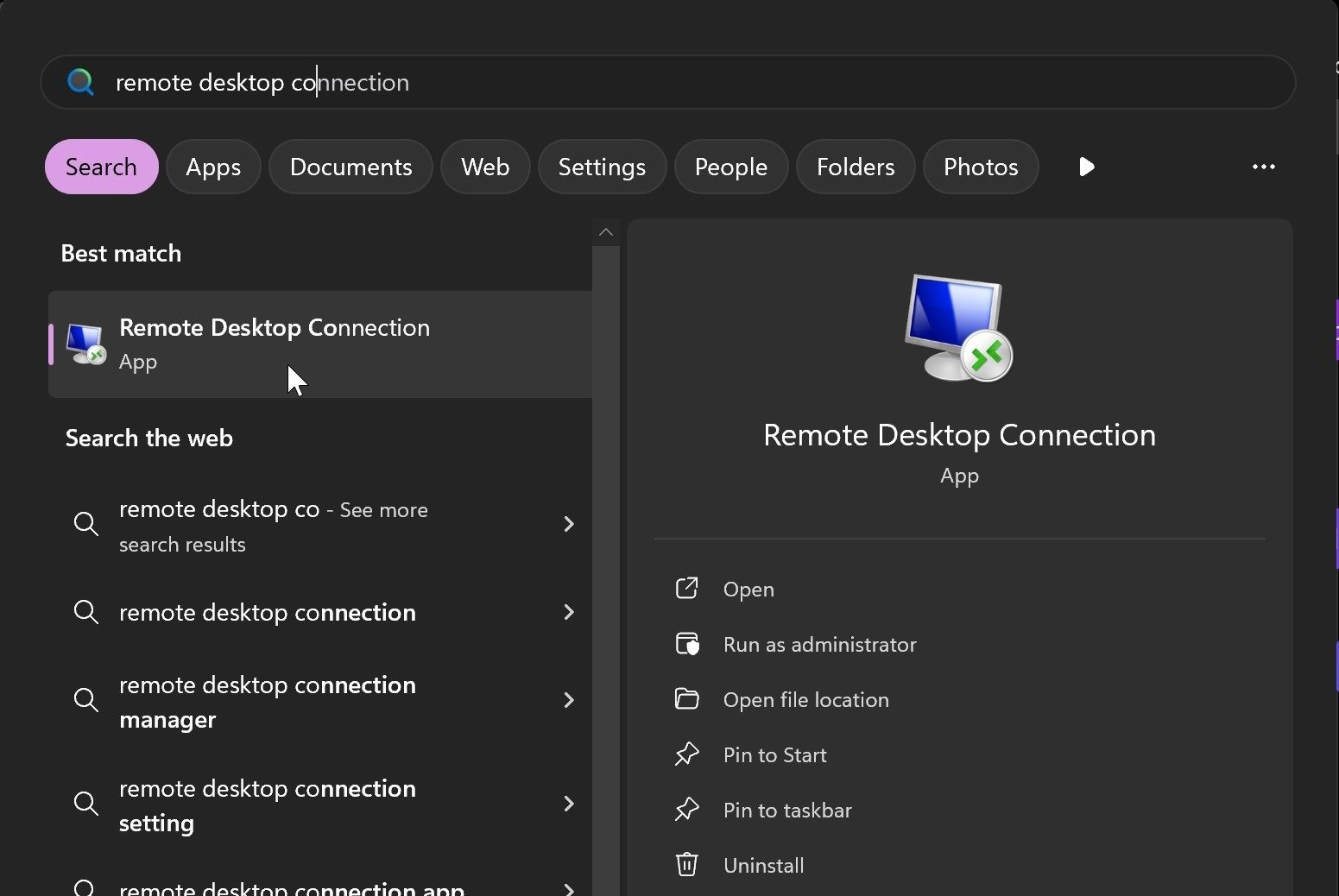
On Windows:
Enter Remote Desktop Connection:?
InComputerfield, enter yourVPS IP:?
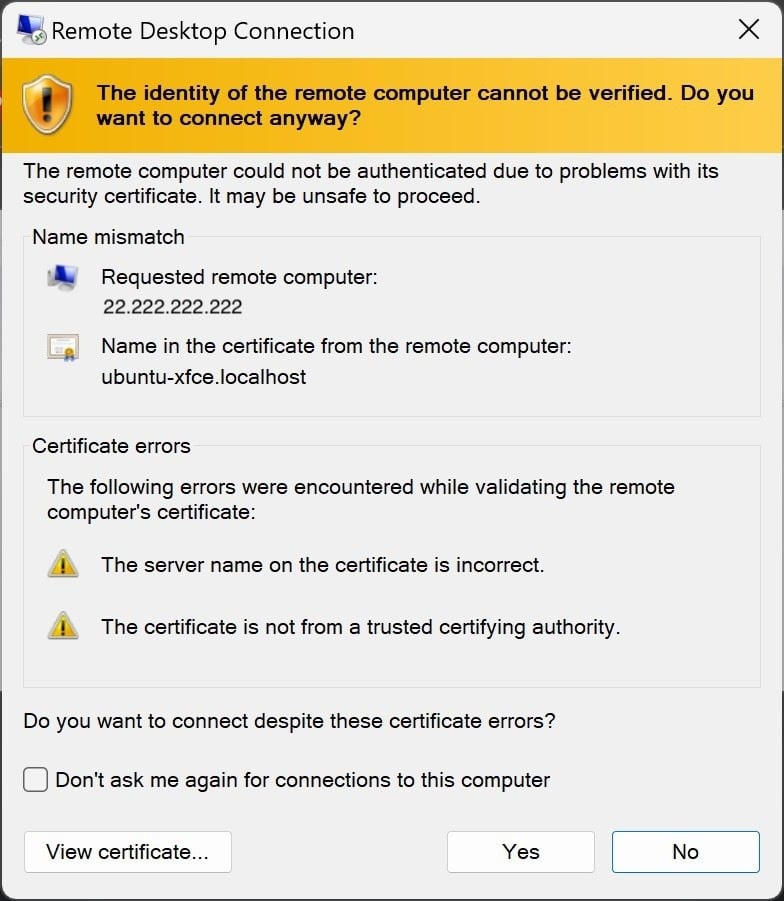
Confirm the certificate by pressing Yes:?
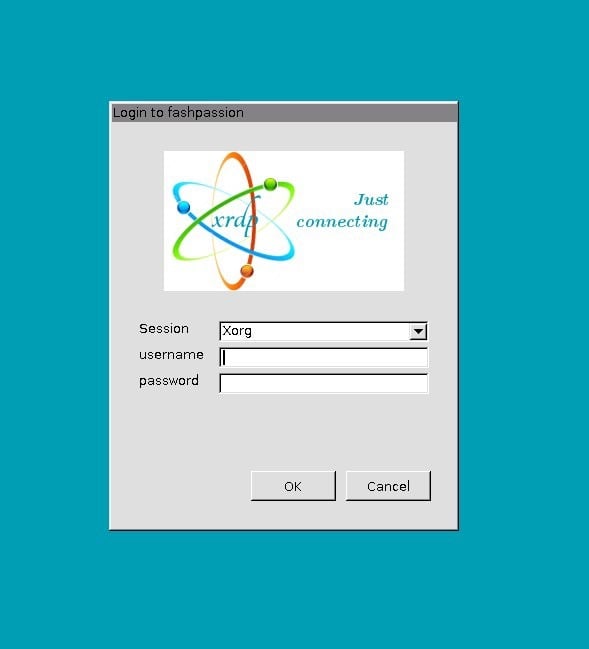
Enter credentials (rootas username, and yourroot password), then press OK:
On macOS:
DownloadWindows App.
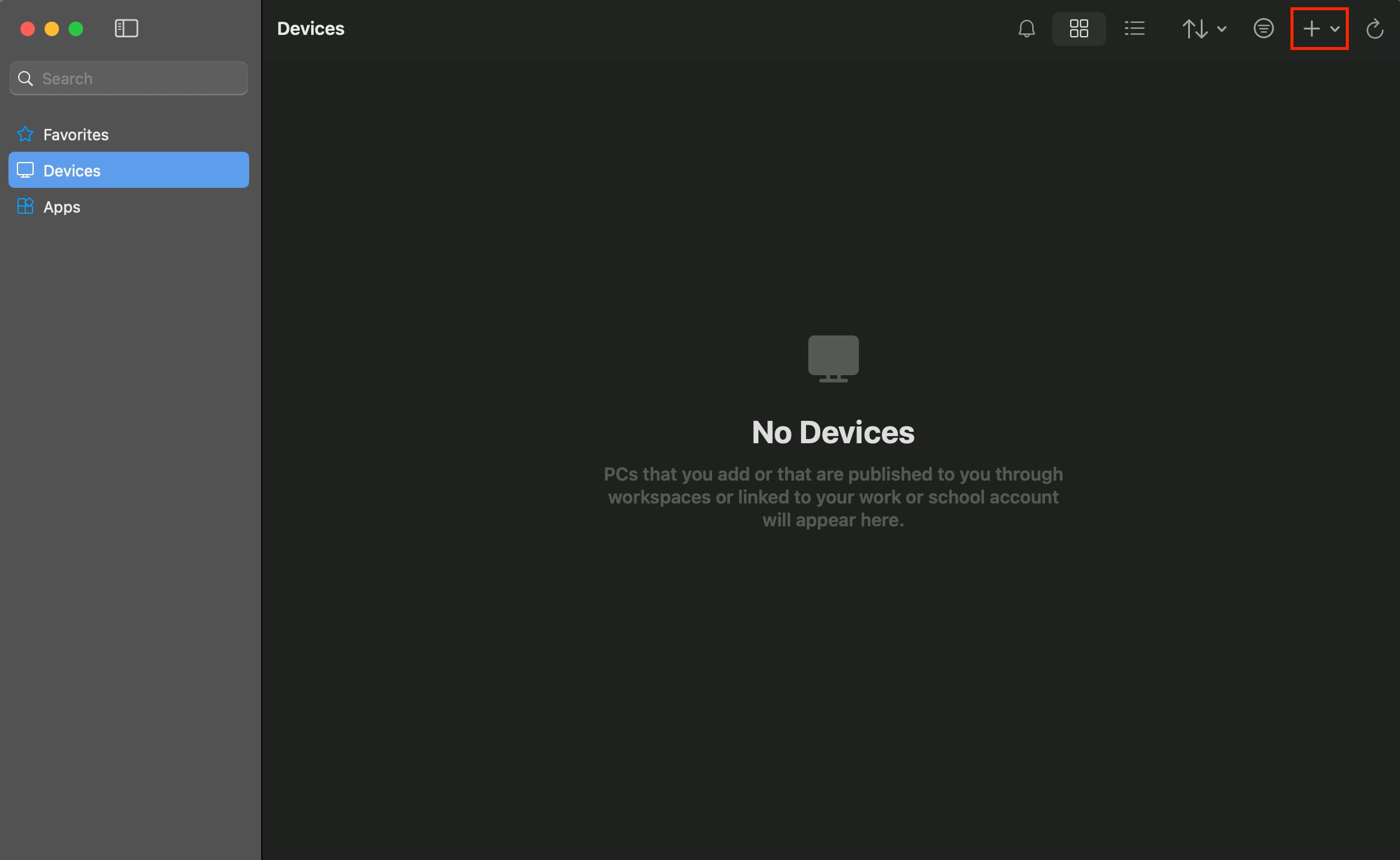
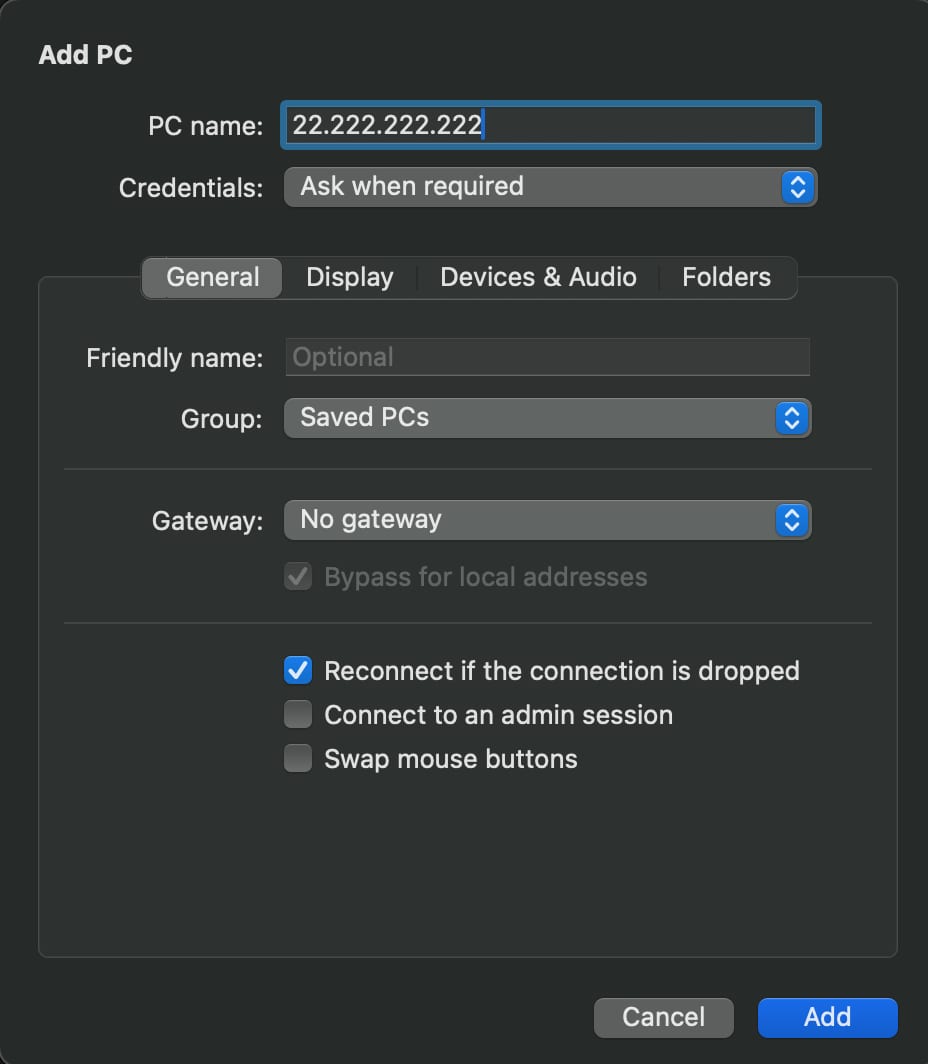
Add new device:?
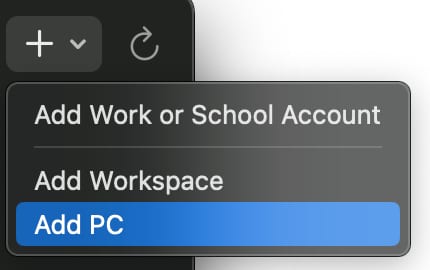
Enter yourVPS IPin PC name field, then press Add:?
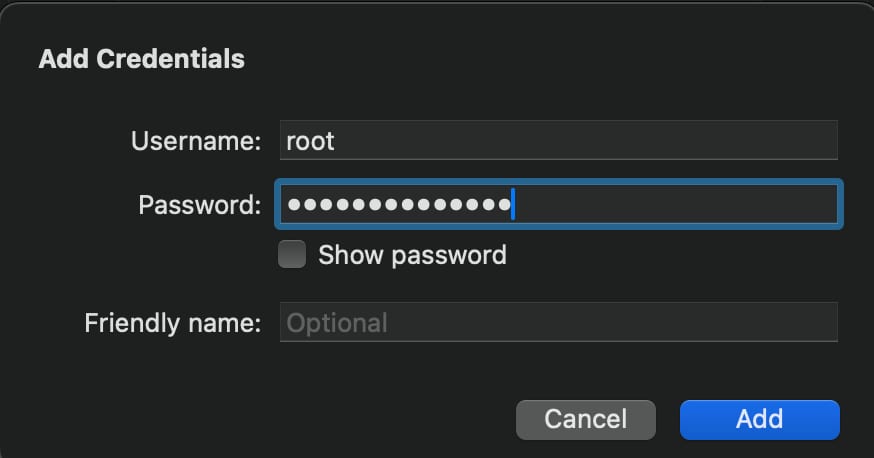
Enter credentials (rootas username, and yourroot password):?
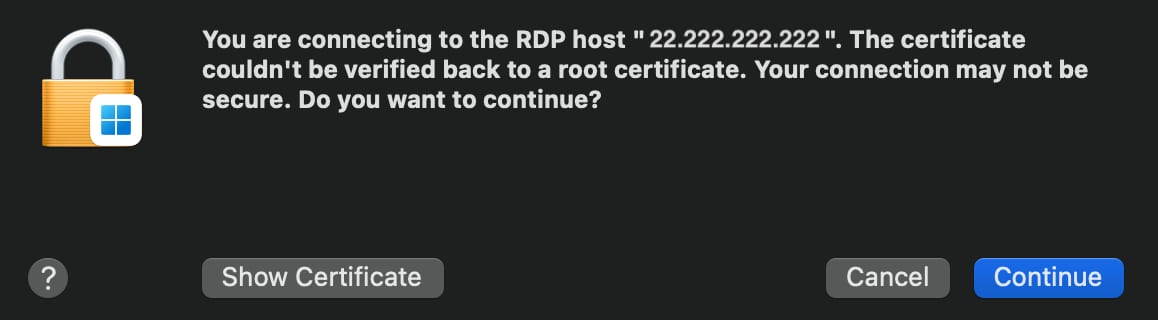
Confirm the certificate by pressing Continue:
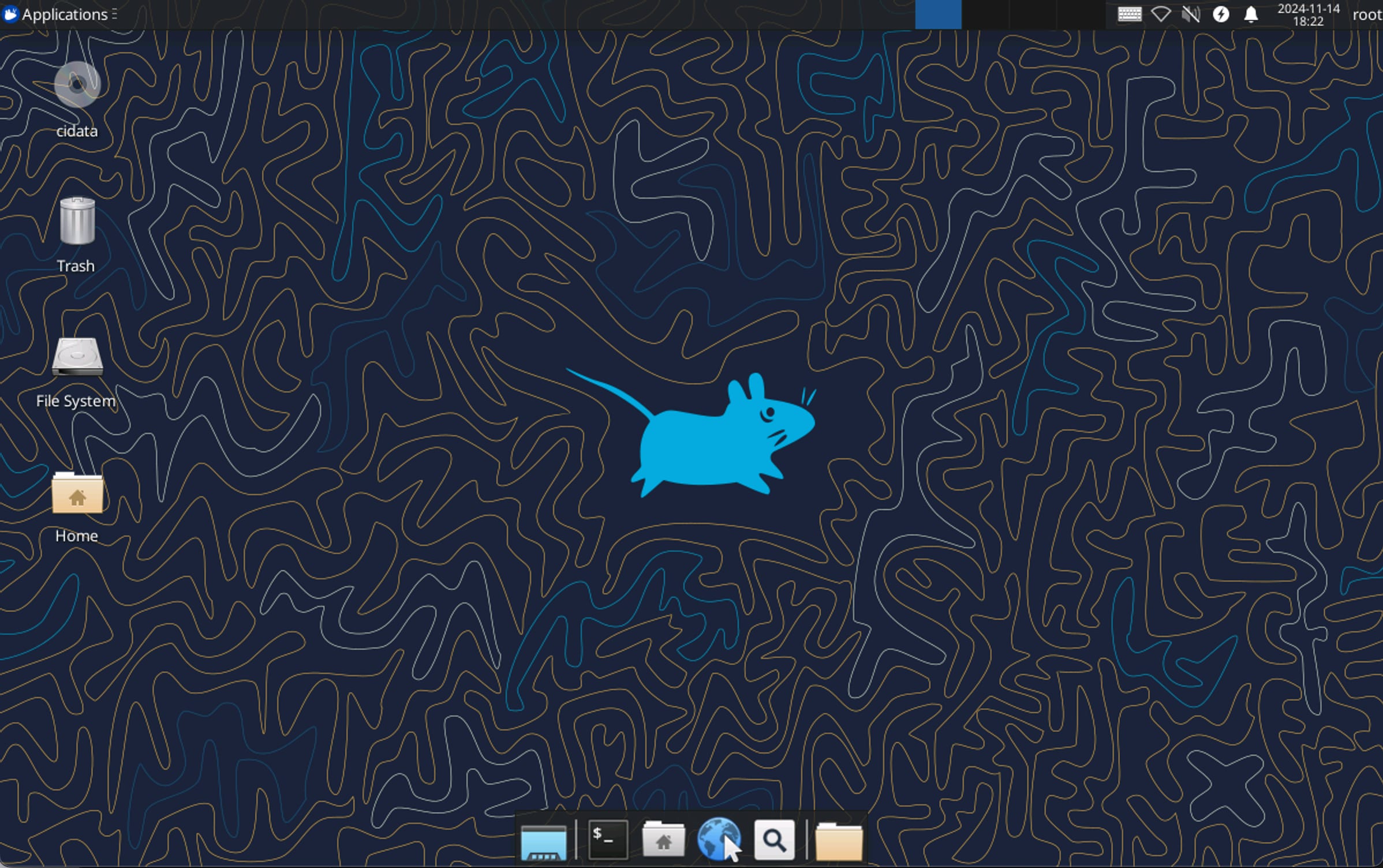
After doing these steps you should be able to login to yourRemote Desktop:?
Graphic applications, irrespective of the desktop environment, are generally designed to be run underregular user accounts. Running them as therootuser may lead to unforeseen issues and is discouraged.
Now you know how to use the Ubuntu 24.04 template with Desktop ?