How to Use the Owncast VPS Template
Owncast is a powerful, open-source, self-hosted live video streaming platform that allows you to broadcast video and interact with your audience without relying on third-party services. Hallo-Webseite.desUbuntu 24.04 with OwncastVPS template comes with Owncast preinstalled, providing a quick and straightforward setup process.
If you dont have a VPS yet, check the available options here:VPS hosting?
Step 1 Access Owncast
Open your web browser and go to:
<code>http://[your-vps-ip]:8080/admin.</code>
Replacing[your-vps-ip]with the actualIP address of your VPS.
You will be prompted to a login screen.
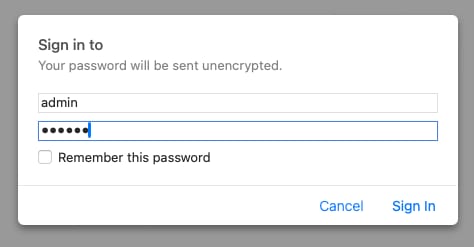
Use the following credentials:
Username admin
Password abc123
Make sure to set a new,strongpassword right after logging in.
Step 2 Set up Owncast
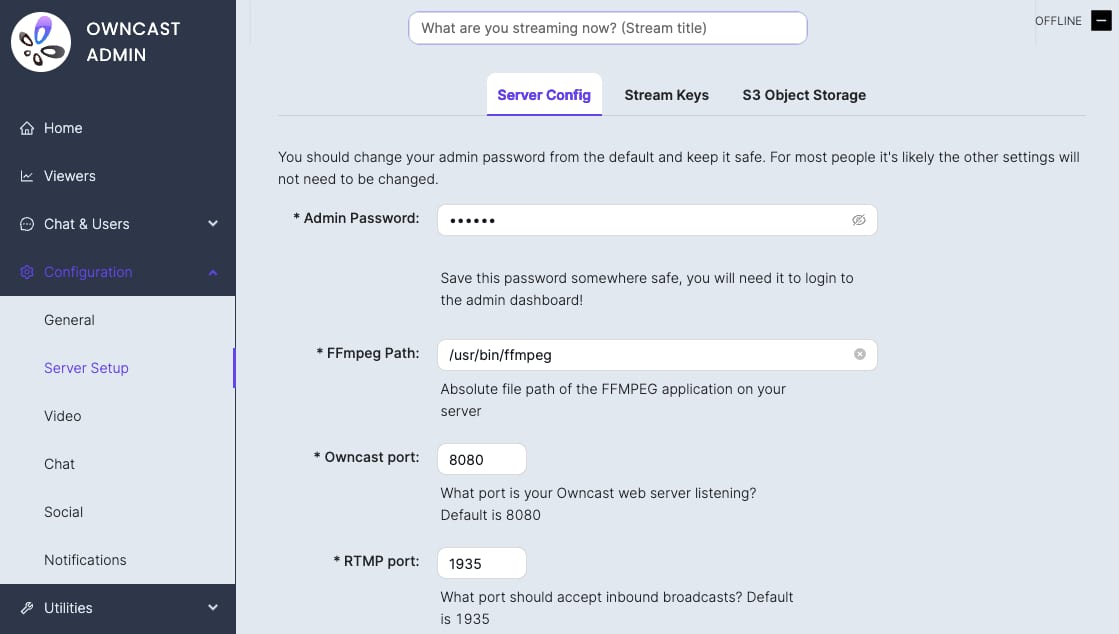
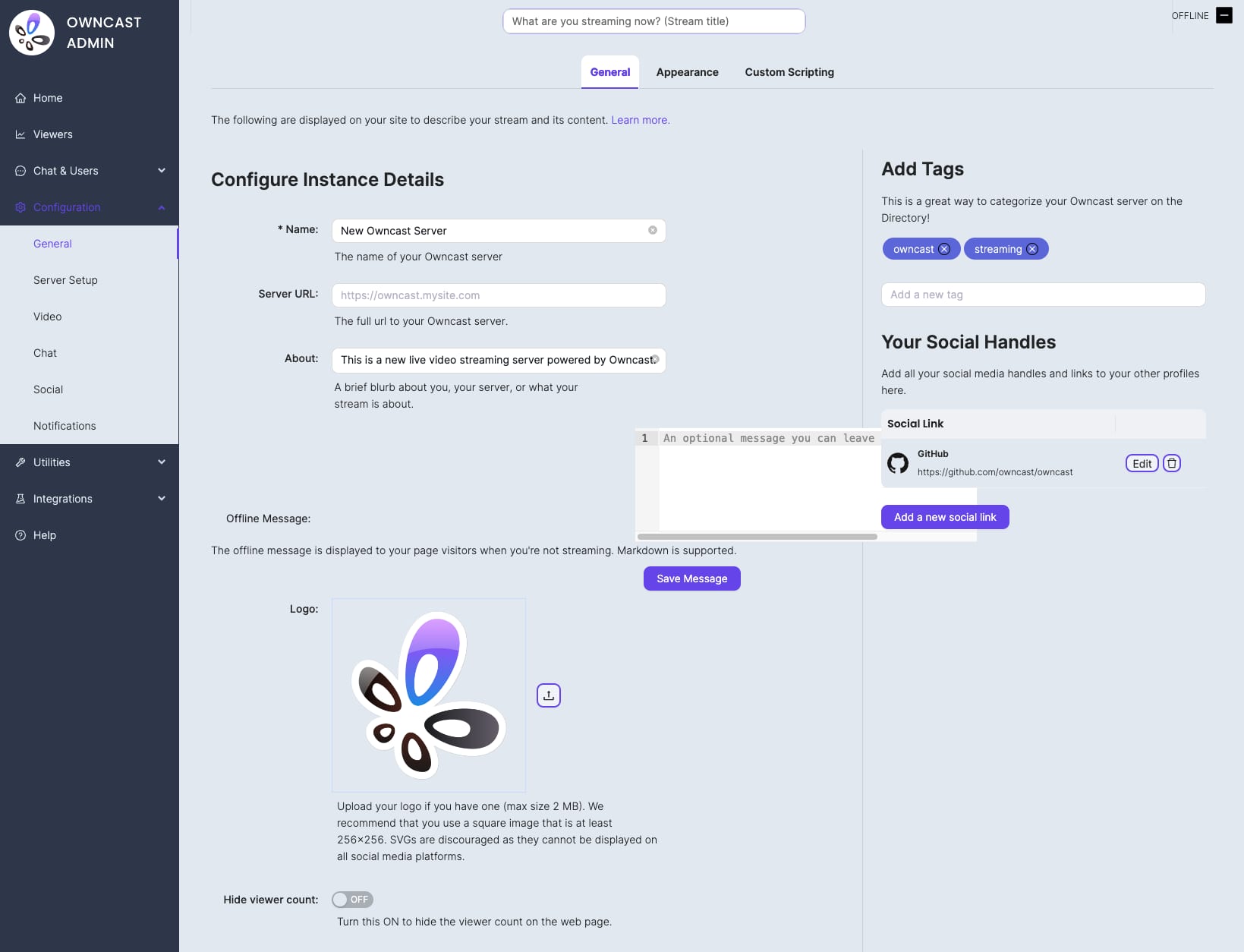
Once logged in, you can set upt the essential stream settings and customize your Owncast instance for a personalized look.
Configure stream settings
Set a stream key that will be used by your streaming software like OBS to connect to your Owncast server.
Configure the video resolution and bitrate according to your needs and the bandwidth capabilities of your server.
Update your streams title, description, and other metadata.
Customize your instance
Personanlize the appearance of your Owncast instance by uploading logos, setting a color scheme, and adding custom CSS if needed.
Configure the integrated chat feature, enabling or disabling it according to your preference, and adapt the moderation settings to your preferences.
Step 3 Set up the streaming software
You will need to download a streaming software such asOBS(Open Broadcaster Software), which is compatible with Owncast.
Use the following values to configure OBS for Owncast
Stream Key In OBS, navigate to theStreamsettings, selectCustomas the service, and enter the Owncast stream key you created on the previous step.
Server URL Set the server URL tortmp://[your-vps-ip]/live, replacing[your-vps-ip]with your actualVPS IP address.
Once ready, beging your live stream by clicking onStart Streamingin OBS. Your stream will be broadcasted live through Owncast.
Monitoring and Managing Streams
You can use the Owncast admin interface to monitor your live streams, including viewer counts, chat activity, and stream health.
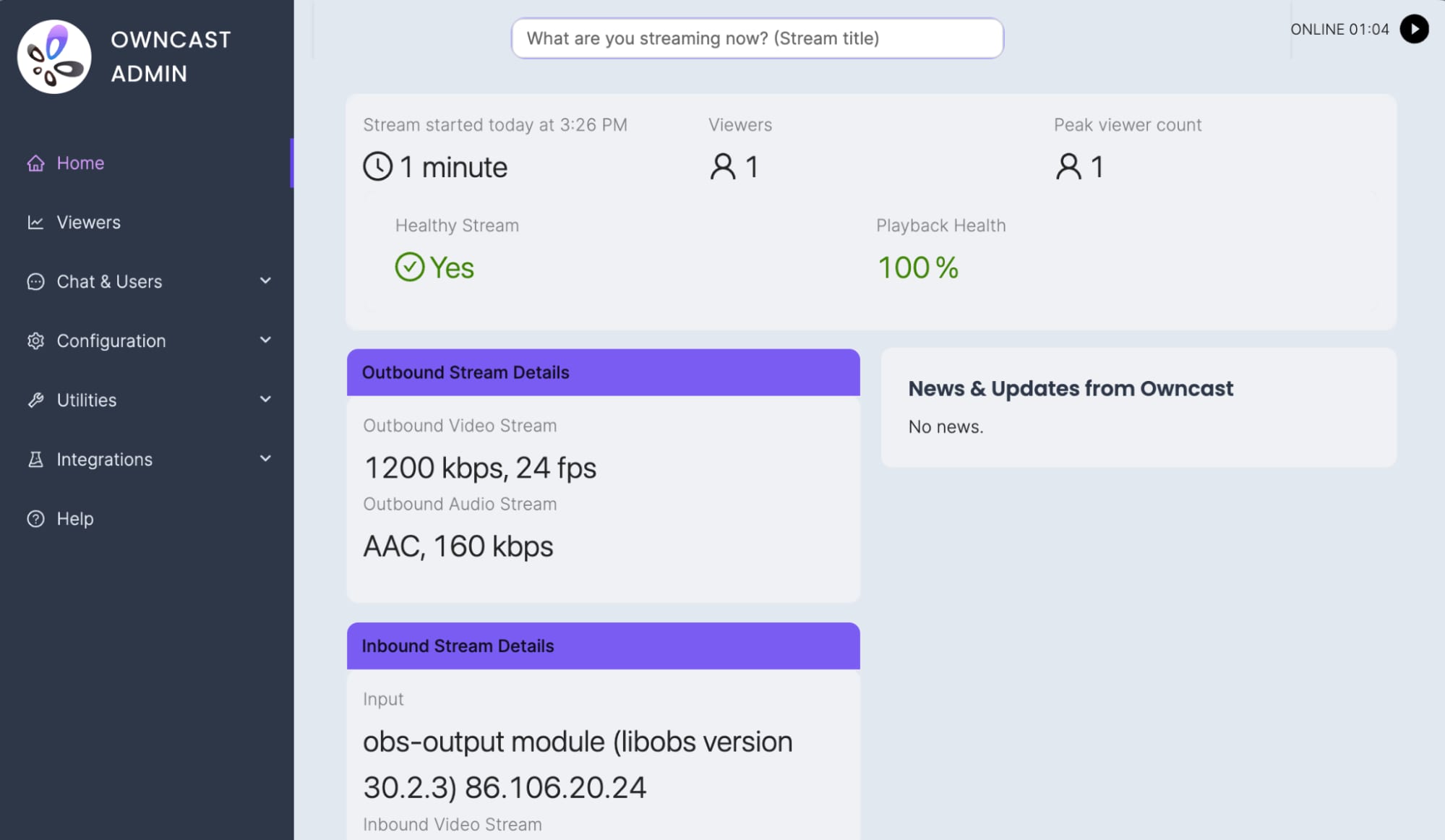
To interact with viewers and engage with your audience, use the integrated chat feature, allowing real-time interaction during your streams.
After completing these steps, your Ubuntu 24.04 with Owncast VPS streaming server will be customized to meet your streaming needs and ready to start streaming to your audience as well as interacting using its chat capabilities.
Additional resources
For more information and advanced configuration options, refere to theofficial Owncast documentation.