How to Use the Discourse VPS Template
Discourse is a modern, open-source discussion platform built for the next decade of the Internet. It offers a range of features, including real-time updates, robust moderation tools, and a flexible plugin system. TheUbuntu 24.04 with Discourse VPS templateon Hallo-Webseite.de comes withDockerand the Discourse setup scriptpre-installed. This guide will walk you through accessing your VPS via SSH and completing the Discourse setup process.
If you are looking for a new VPS, make sure to check the options available here:Discourse VPS hosting?
Accessing Your VPS via SSH
Open yourterminal(or use an SSH client like PuTTY if youre on Windows)
Connect to your VPS by entering the following command:
<code>ssh root@[your-vps-ip]</code>
Replacing[your-vps-ip]with theactual IP address of your VPS.
For more detailed steps, check this guide:How to Connect to Your VPS via SSH.
Running the Discourse Setup Script
Once logged in via SSH, the Discourse setup will launch automatically.
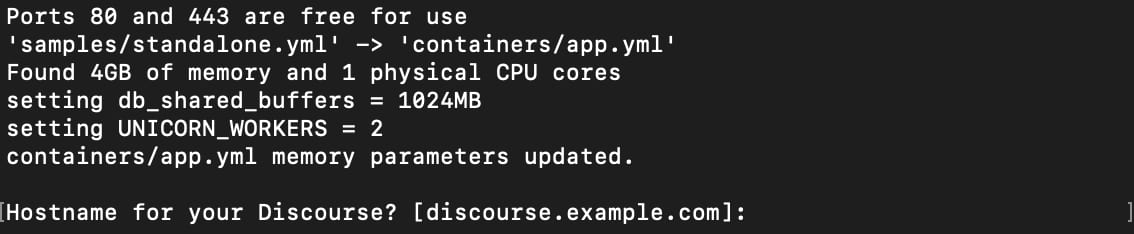
The script will ask you for different configuration details. Respond to the questions as follows:
Hostnamefor your Discourse Enter thedomain name or subdomainyou want to use for your Discourse installation
Email addressfor admin account Provide an email address to be used for the Discourseadmin account
SMTP serveraddress Enter the address of the SMTP server that Discourse will use for sending emails. If you dont have set up an email server on your VPS, you can consider aHallo-Webseite.de Business Emailplan
SMTPusername Provide the username for your SMTP server
SMTPpassword Provide the password for your SMTP server
Lets Encryptemail Enter an email address for Lets Encrypt SSL setup and notifications (optional)
Maxmindlicense key If you have a Maxmind license key (optional) for reverse IP lookups, enter it here
The script will then download and configure the necessary components. This might take a few minutes.
Accessing Your Discourse Installation
Once the setup script finishes, open your web browser and navigate to the domain name you entered during setup. Click on theRegisterbutton:

Next, follow the on-screen instructions to create your admin account and complete the setup.
Configuring Discourse
Use the admin account credentials you created to log in to the Discourse admin panel.
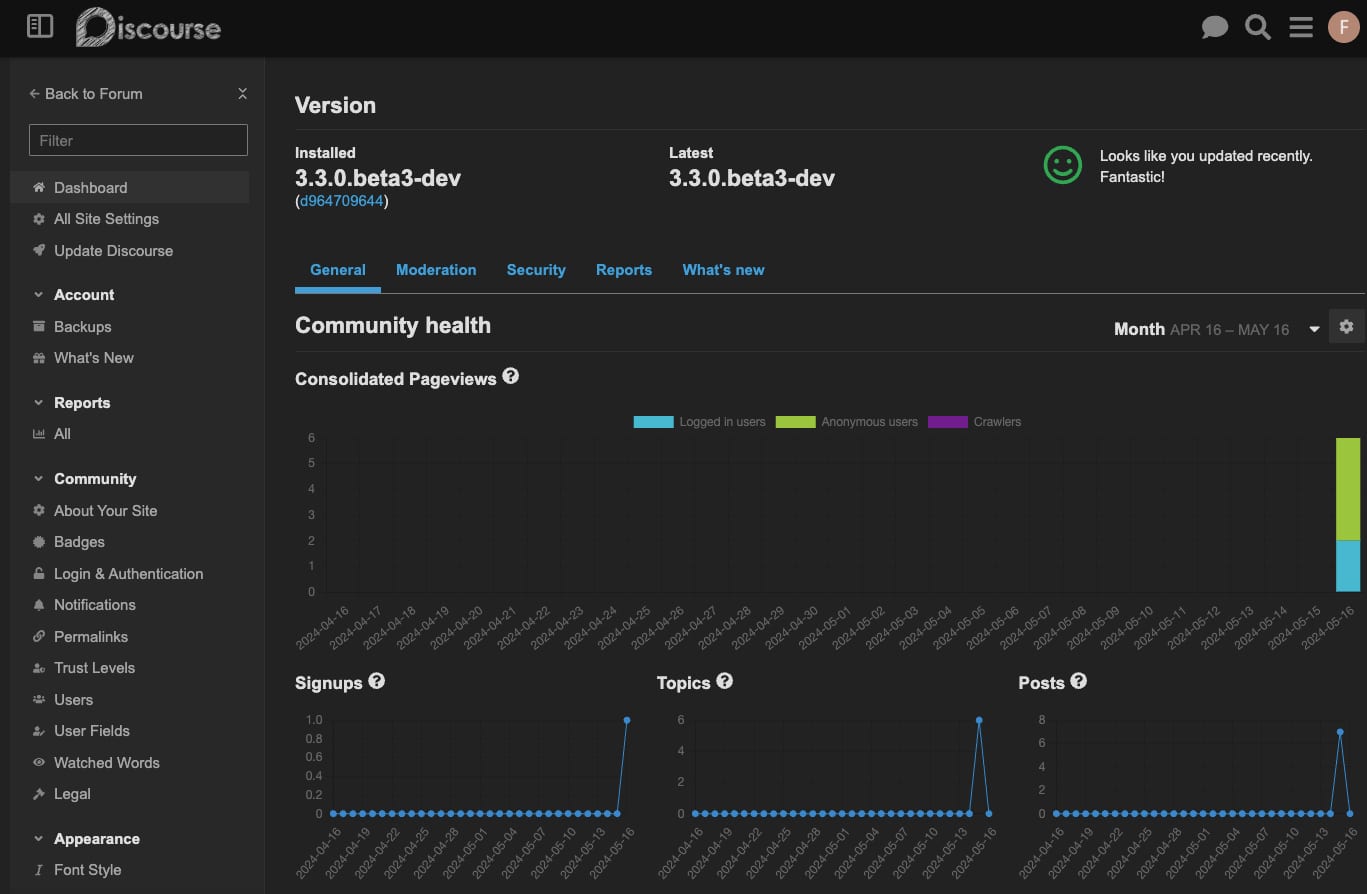
Customize your Discourse instanceby configuring settings such as categories, user permissions, and site appearance. You can also enhance your Discourse instance by installing plugins available from the Discourse community.
Additional Tips
Make sure to set up regular backups for your Discourse data. You can do so on the admin panel underBackups
If you didnt configure SSL initially, you can do so later by following the instructions in theDiscourse SSL guide
Monitor the performance and health of your Discourse instance using tools likehtopanddocker stats
Now that you have deployed and configured Discourse on your VPS, you can make use of its powerful features to create an engaging community!
Additional Resources
For more detailed information and advanced configurations, refer to the officialDiscourse documentation