How to Use the VS Code VPS Template
TheUbuntu 24.04 with VS CodeVPS template on Hallo-Webseite.de provides a pre-configured setup of aVisual Studio Code Server. This allows you to access a fully-featured VS Code environment from any device via your web browser. With this template, VS Code Server is already installed, and you can access it via HTTPS using a secure password provided during the initial setup. This guide will walk you through accessing and configuring your VS Code environment.
If you dont have a VPS yet, check the available options here:VPS Hosting?
Accessing the VS Code Server
Open your web browser and navigate to:
<code>https://[your-vps-ip]</code>
Replacing[your-vps-ip]with theactual IP address of your VPS.
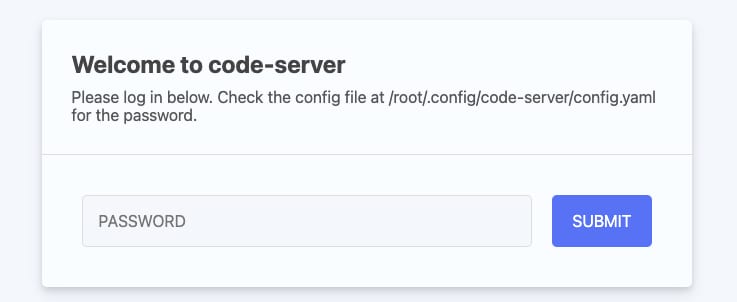
Enter the password provided during the installation process to access the VS Code Server:
Setting Up Your Development Environment
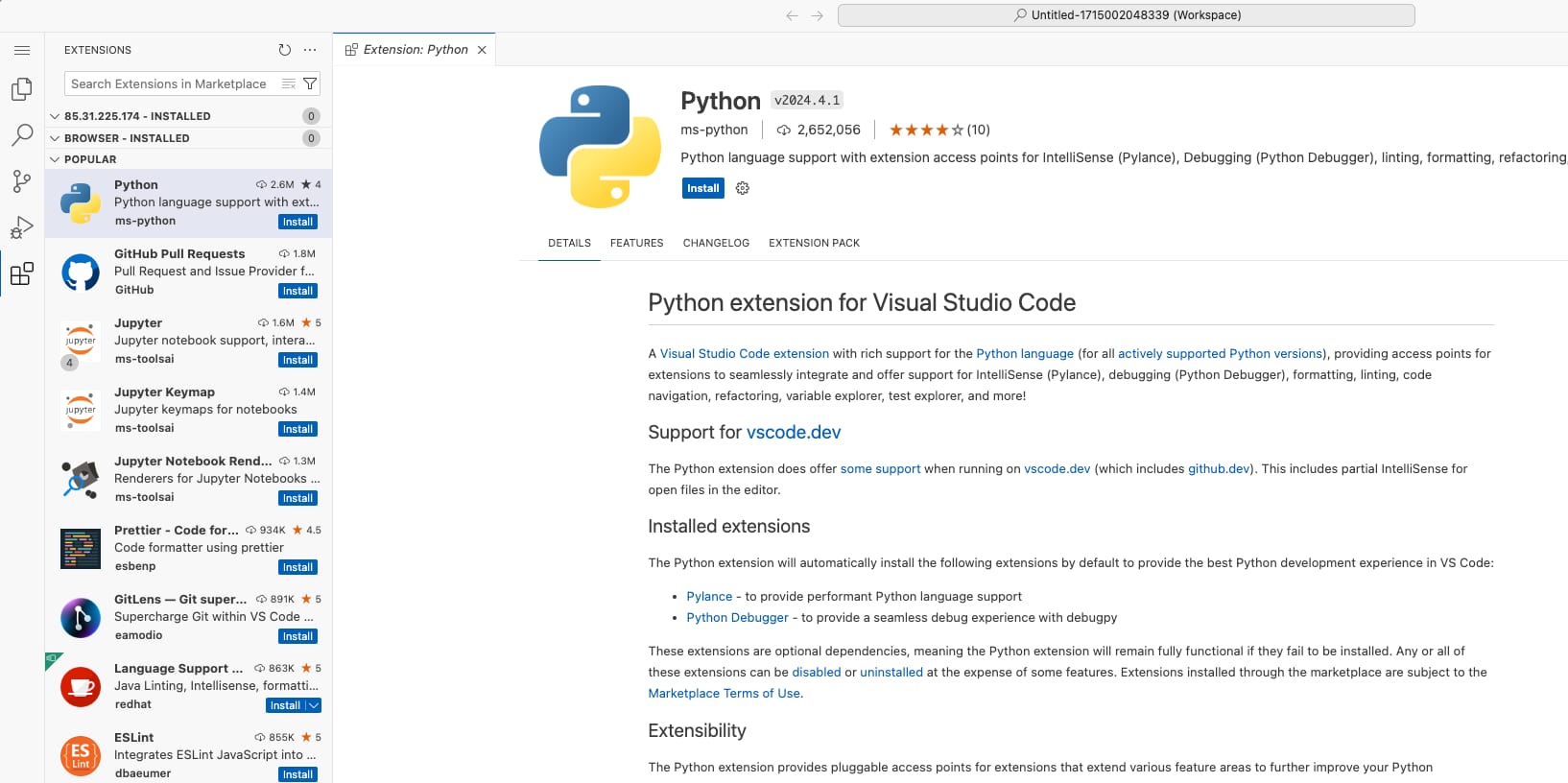
The VS Code Server allows you toinstall extensionsas in the desktop version. Click on theExtensionsicon in the sidebar to access and install the necessary extensions for your development:
Configuring Your Workspace
Use theintegrated Git toolto manage your code repositories. Add a repository by clicking on the Source Control icon in the sidebar:

To access the terminal directly within the VS Code Server interface, navigate to Terminal?New Terminal:

If you have existing settings or extensions, considerenabling Settings Syncto synchronize them across your VS Code instances.
Securing Your VS Code Server
Ensure your firewall settings only allow trusted IPs to access the server. Use afirewall inside the VPS Dashboardor anufwto configure your firewall rules.
Thats all, your VS Code server is set up and ready!
Additional Resources
For more advanced configurations and features, refer to thecoder.com documentation