How to Use the TYPO3 VPS Template
TYPO3is a powerful and flexible open-source content management system (CMS) that provides a wide range of features to build and manage websites of various sizes and complexities. TheUbuntu 24.04 with TYPO3VPS template on Hallo-Webseite.de, coupled with the CloudPanel control panel, offers a streamlined approach to deploying TYPO3, making it accessible for users of all skill levels.
Visit ourTYPO3 hostingpage to explore the available plans.
This guide will walk you through the basics of accessing and configuring your TYPO3 CMS.
Accessing CloudPanel
Open a web browser and navigate to
https://<b>your-vps-ip</b>:8443. Make sure to replaceyour-vps-ipwith theactual IP address of your VPS: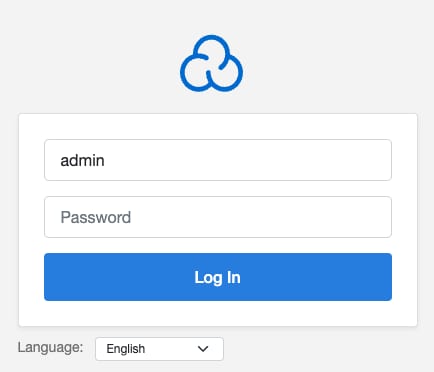
Use the credentials you provided during template installation tolog into the CloudPanel interface.
Accessing Your TYPO3
Open a new tab in your browser and navigate to your TYPO3 site by entering your serverhostname. Append
/typo3to the end of the URL to access the TYPO3 backend (e.g.,http://your-vps-hosname/typo3):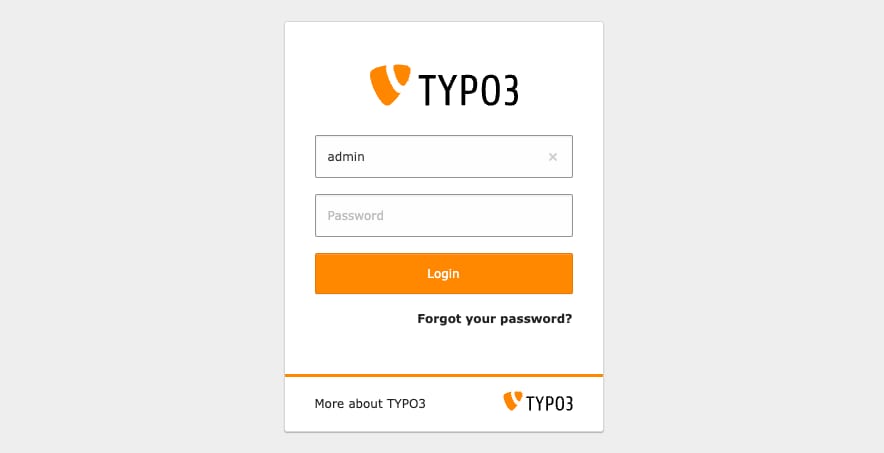
Use the TYPO3 admin credentials provided during the installation process. If this is your first time logging in, you may be prompted to change your password.
If you want TYPO3 to run on your domain, just point your domain to a VPS IP address,change the server hostname, and reinstall the server ?
Customizing Your TYPO3 Installation
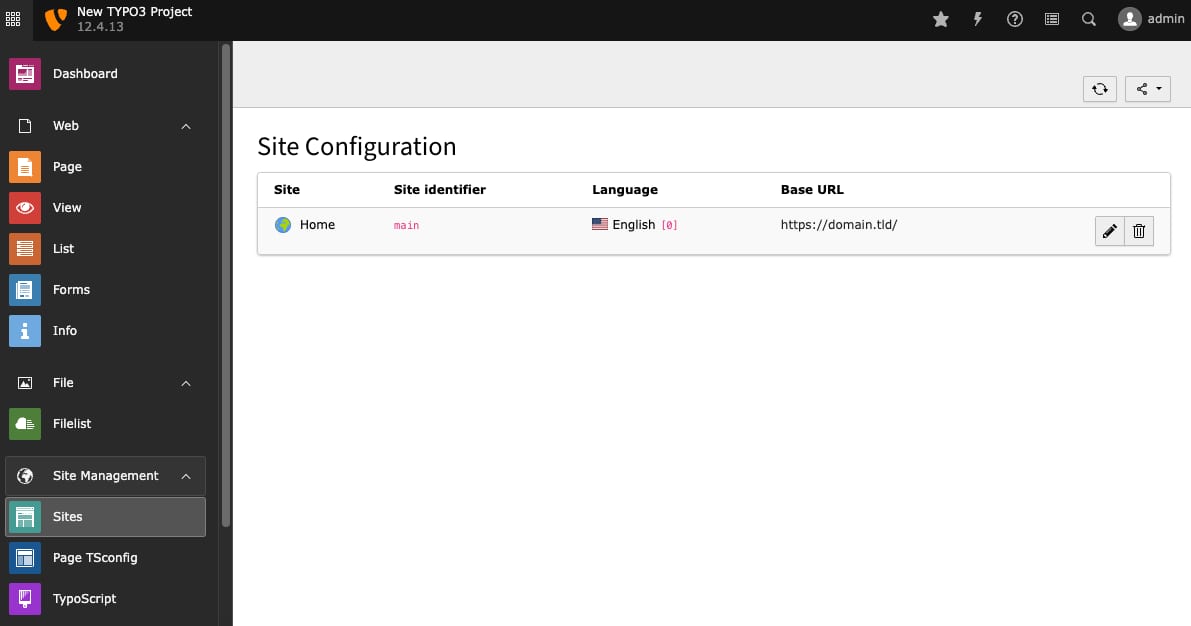
Within the TYPO3 backend, navigate to theSite Managementsection to configure your sites properties, including base URL, languages, and error handling:
If you are using TYPO3 for the first time, you may want to see a working example of CMS before you start working on your own project. For that, TYPO3 has prepared theIntroduction Package.
Adding Content to Your Site
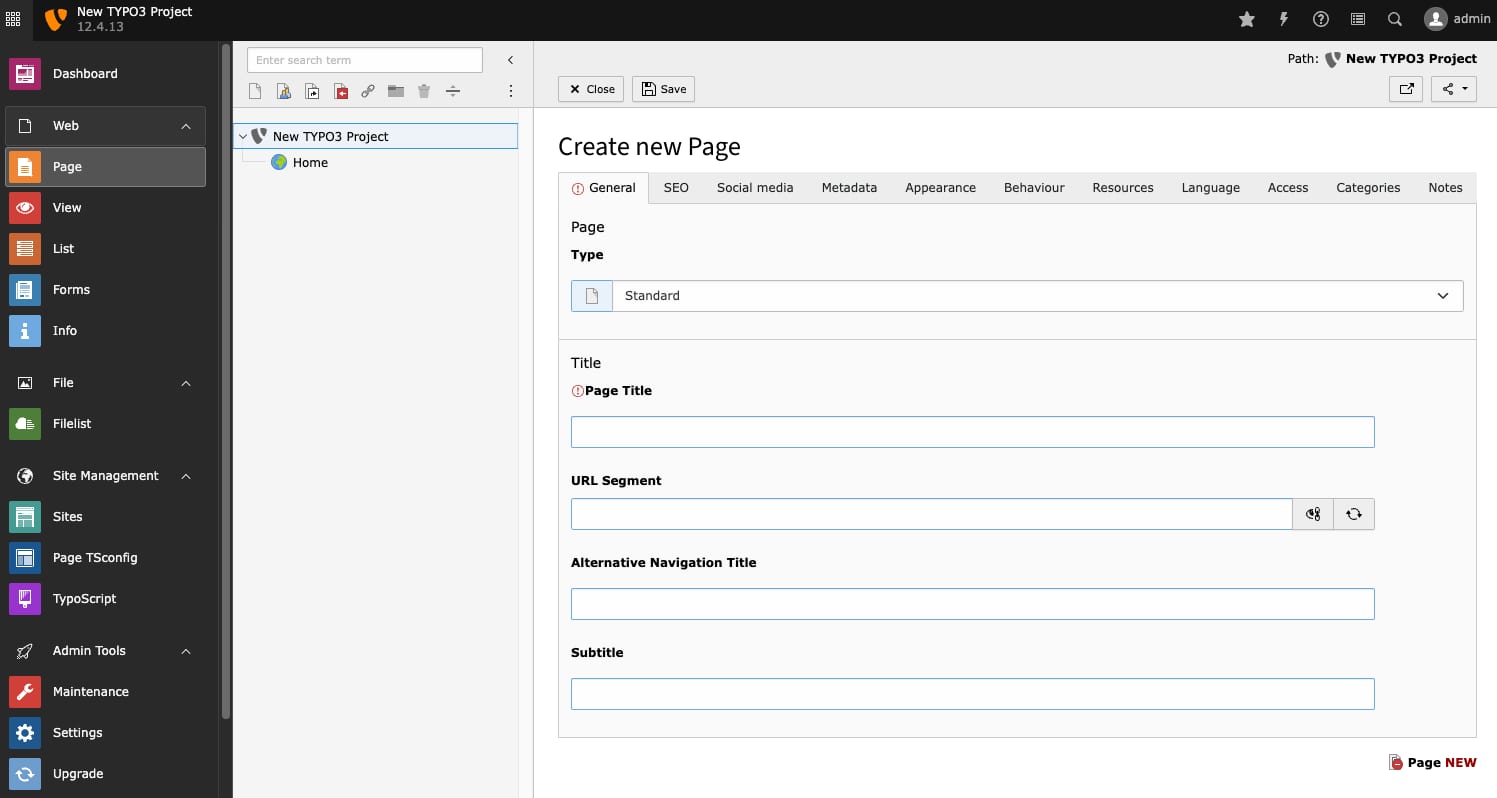
Use thePagemodule to create and organize your sites pages. Add content elements to your pages using the rich set of content types available in TYPO3, such as text, images, and videos:
TheFilelistmodule allows you to upload and manage media files that can be used throughout your site.
Extending TYPO3 Functionality
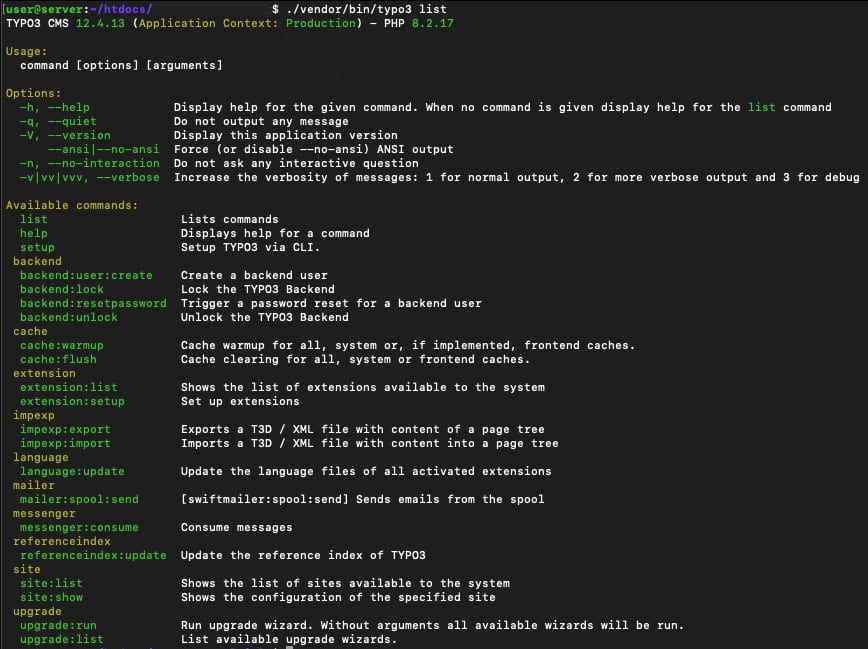
TYPO3s extensivelibrary of extensionsenables you to add new features and functionality to your site. Your TYPO3 website is set to composer mode. To modify which extensions are part of the system, use will need to useComposer. To set extensions up, use the TYPO3 cli (extension:setup):
TheUbuntu 24.04 with TYPO3VPS template on Hallo-Webseite.de, combined with CloudPanel, provides a powerful and efficient platform for deploying and managing TYPO3 websites. By following the steps outlined in this guide, you can get your TYPO3 site up and running quickly and begin customizing it to meet your specific needs.
Remember, TYPO3 is a comprehensive CMS with a steep learning curve, so take advantage of the resources available in theTYPO3 Documentationto deepen your knowledge and maximize the potential of your TYPO3 site.