How to Use the Rocket.Chat VPS Template
Rocket.Chatis a leading open-source communication hub that offers chat, video conferencing, file sharing, and integration with various services. With Hallo-Webseite.desUbuntu 24.04 64bit with Rocket.ChatVPS template, getting started with your own chat server is made easier, as Rocket.Chat comespre-installed on Docker.
This guide will walk you through the basics of accessing and configuring your Rocket.Chat instance.
Accessing Rocket.Chat
In your web browser, navigate to
https://[your-vps-hostname]replacing[your-vps-hostname]with the actualhostname addressof your VPS. You should reach the Rocket.Chat setup wizard: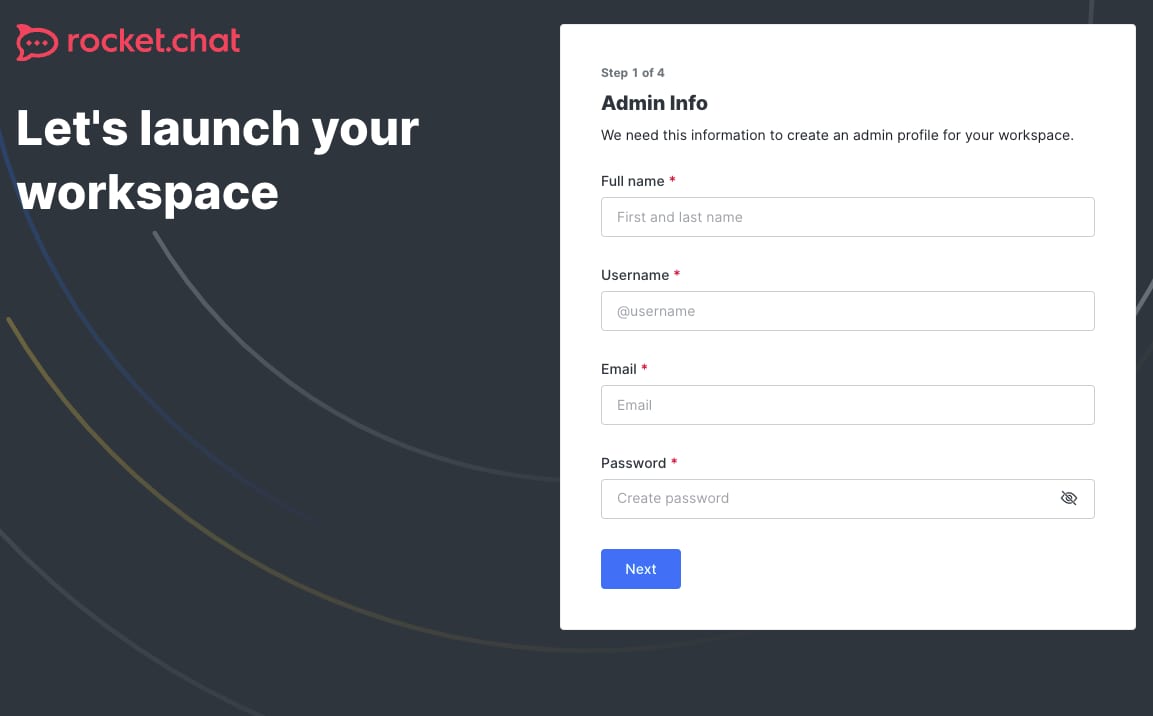
Configuring Rocket.Chat
Follow the on-screen instructions to configure your Rocket.Chat instance, including creating an admin account:
After the setup, customize your Rocket.Chat settings via the admin panel to fit your organizations needs. This includes setting up user roles, permissions, and integration with external services.
Managing Rocket.Chat Docker Container
To manage your Rocket.Chat Docker container you need tolog in to your VPS through SSH. In the terminal, you will be able to list all running containers with a command:
<code>docker ps -a</code>
To take your Rocket.Chat database backup todb.dumpfile run this command:
<code>docker exec <container_name> sh -c 'mongodump --archive' > db.dump</code>
TheUbuntu 24.04 64bit with Rocket.ChatVPS template from Hallo-Webseite.de provides an excellent starting point for setting up a private communication hub for your team or organization. By following this guide, you can get your Rocket.Chat instance up and running quickly, and begin customizing it to meet your specific needs.
For more detailed information, consult theRocket.Chat Documentationand theDocker Documentation.