How to Use the Magento 2 VPS Template
Magento 2is a powerful, open-source eCommerce platform that offers extensive features for online merchants with the flexibility to customize their online store.
With Hallo-Webseite.desUbuntu 24.04 64bit With Magento 2VPS template, launching an eCommerce site is more straightforward, as Magento 2 comes pre-installed on the server.
To explore the tailored hosting solutions, visit ourMagento VPS page.
This guide will walk you through the basic steps to get your Magento 2 store up and running.
Accessing Your Magento 2 Store
Open a web browser and visit
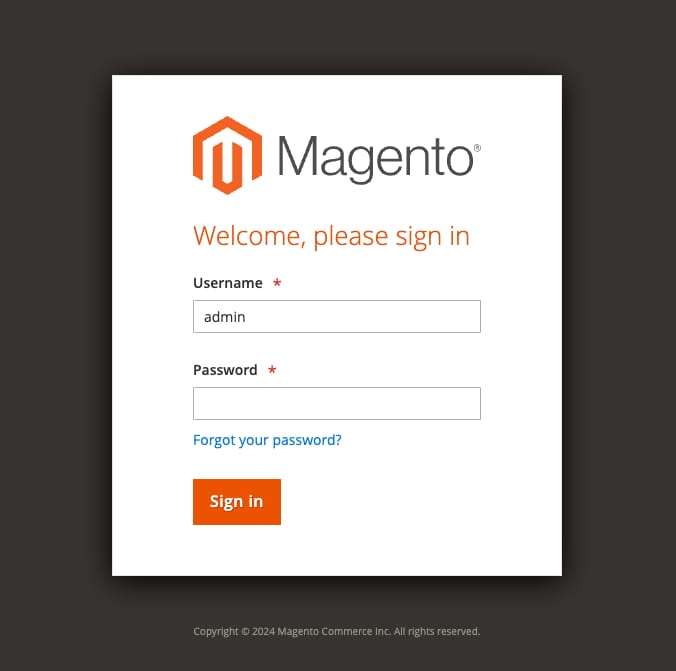
https://[your-VPS-hostname]/admin/ make sure to replace[your-VPS-hostname]with theactual hostname of your VPS.Youll be directed to the Magento 2 admin page:
In theUrsernamefield, insert
adminIn thePasswordfield, insert the password you entered when installing the template:
Configuring Your Store
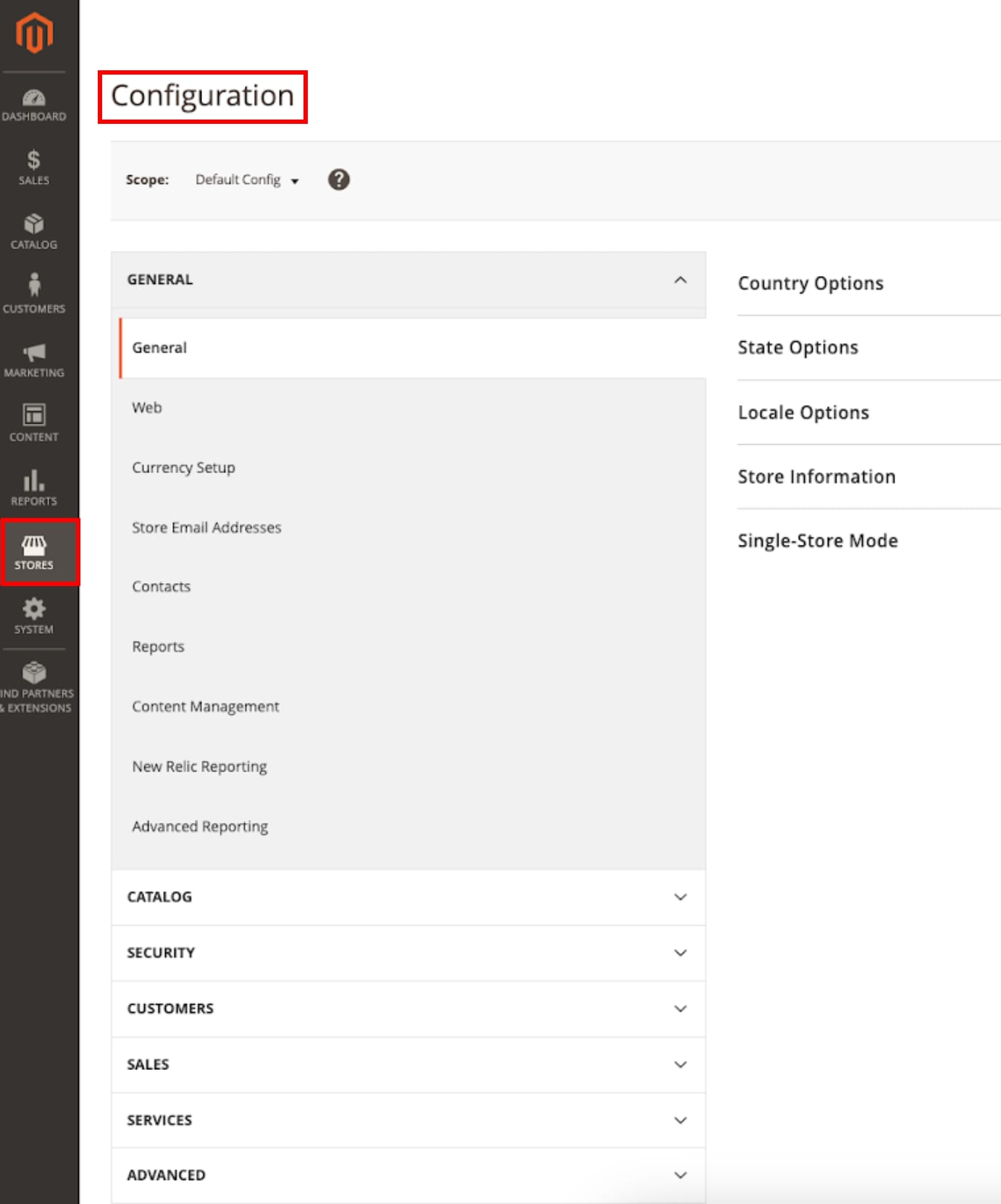
In the Magento admin panel, navigate toStores?Configurationto customize your store details, such as name, address, and default language:
Customizing Your Stores Design
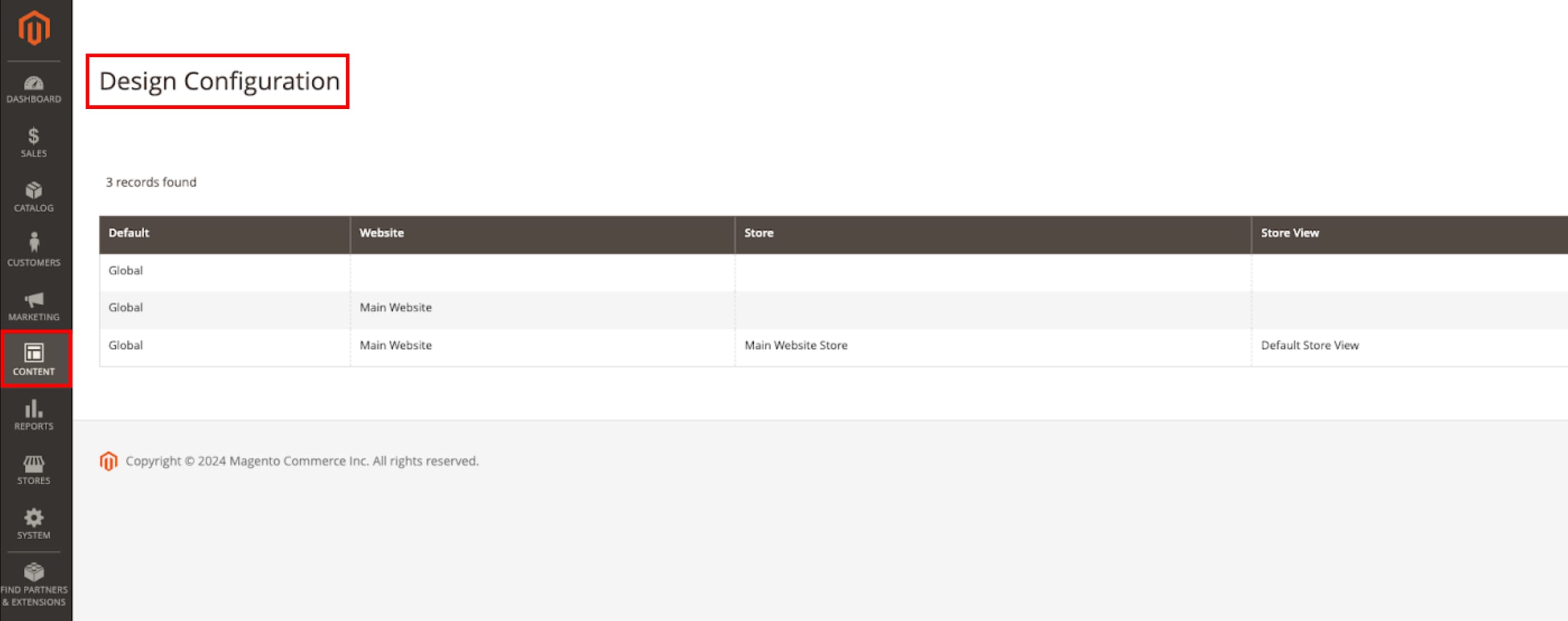
Magento 2 offers several themes to choose from. You can select and customize a theme by navigating toContent?Design Configuration:
For more in-depth customization, Magento allows you toadd custom CSS and JavaScript.
Adding Products
Navigate toCatalog?Productsin the admin panel. Here, you can add new products, their descriptions, images, pricing, and other details.
Organize your products into categories for easier navigation by going toCatalog?Categories.
Setting Up Payment and Shipping
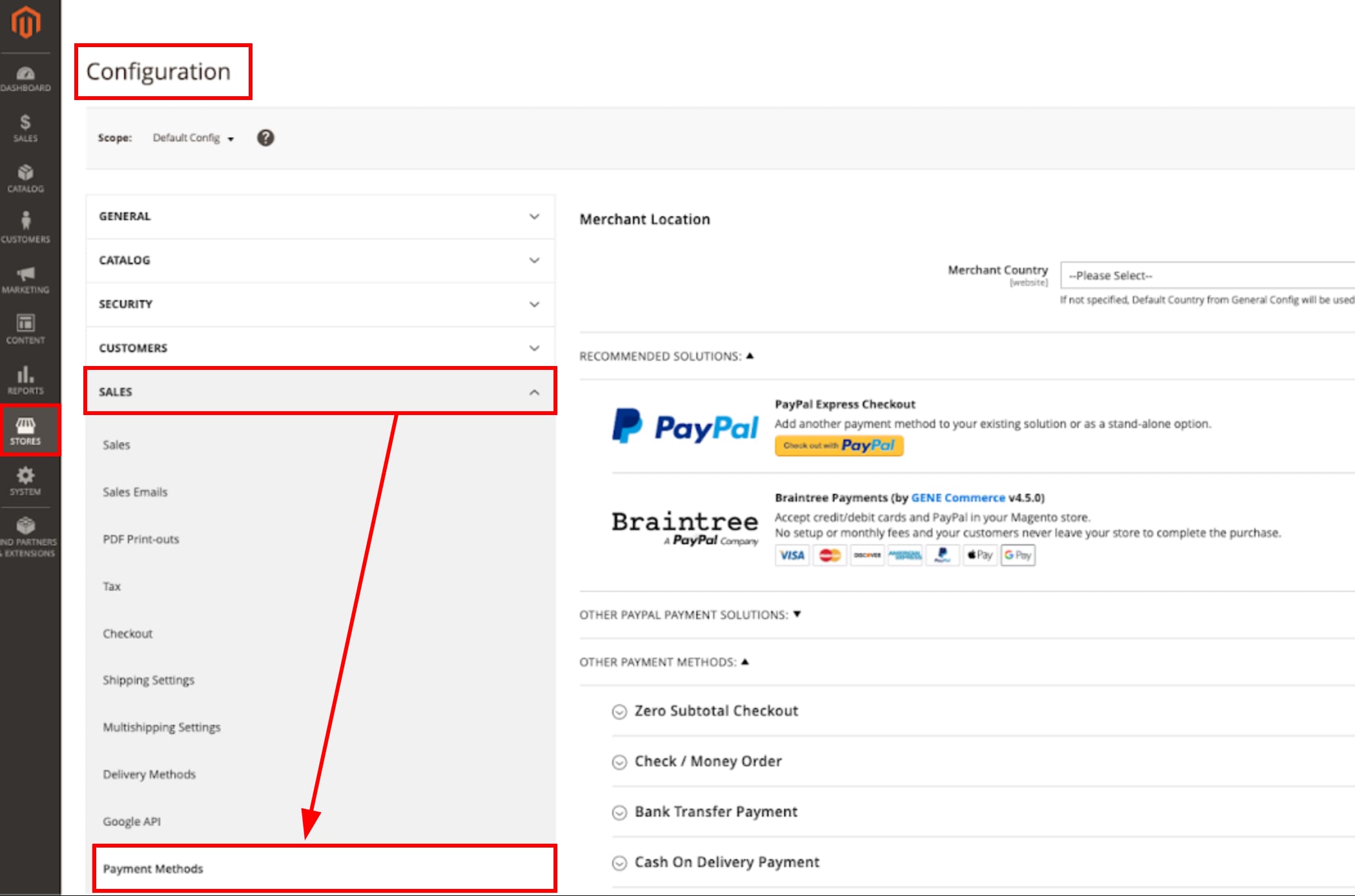
Magento supports a variety of payment methods. Set these up underStores?Configuration?Sales?Payment Methods:
Configure your shipping methods and rates underStores?Configuration?Sales?Shipping Settings.
Customizing Magento with Extensions
Visit theMagento Marketplaceto find extensions that add functionality or integrate third-party services with your store. Extensions can be installed viaWeb Setup Wizardin your Magento admin panel, or manually usingComposer:
<code>php8.2 ~/htdocs/YOUR-DOMAIN/bin/magento</code>
NOTE
This template usesCloudPanel, which runs an NGINX web server. For specific plugins, you might need to editvhostfiles
For further information and troubleshooting, refer to the officialMagento 2 User Guide?