How to Use the Nextcloud VPS Template
Nextcloudoffers an open-source solution for file hosting and sharing, providing a secure and private alternative to centralized cloud services. With Hallo-Webseite.desUbuntu 22.04 64bit with NextcloudVPS template, setting up a personal Nextcloud instance is straightforward. This guide will walk you through the process of using and managing your Nextcloud instance .
If you dont have a VPS yet, you can check the available options here:Nextcloud hosting?
Accessing Nextcloud
To access Nextcloud, open a web browser and go tohttps://your-vps-ip. Replaceyour-vps-ipwithyour VPSs IP addressand enter credentials set during template installation:
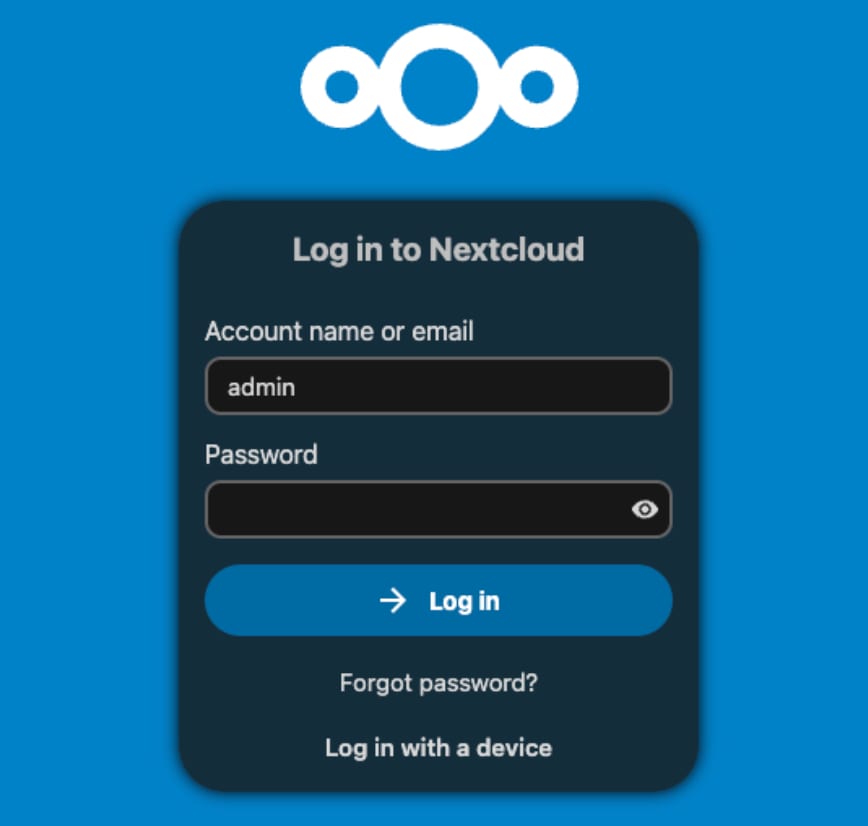
If your hostname points to a VPS IP address, you can also use it to access your Nextcloud instance ?
Managing Files and Users
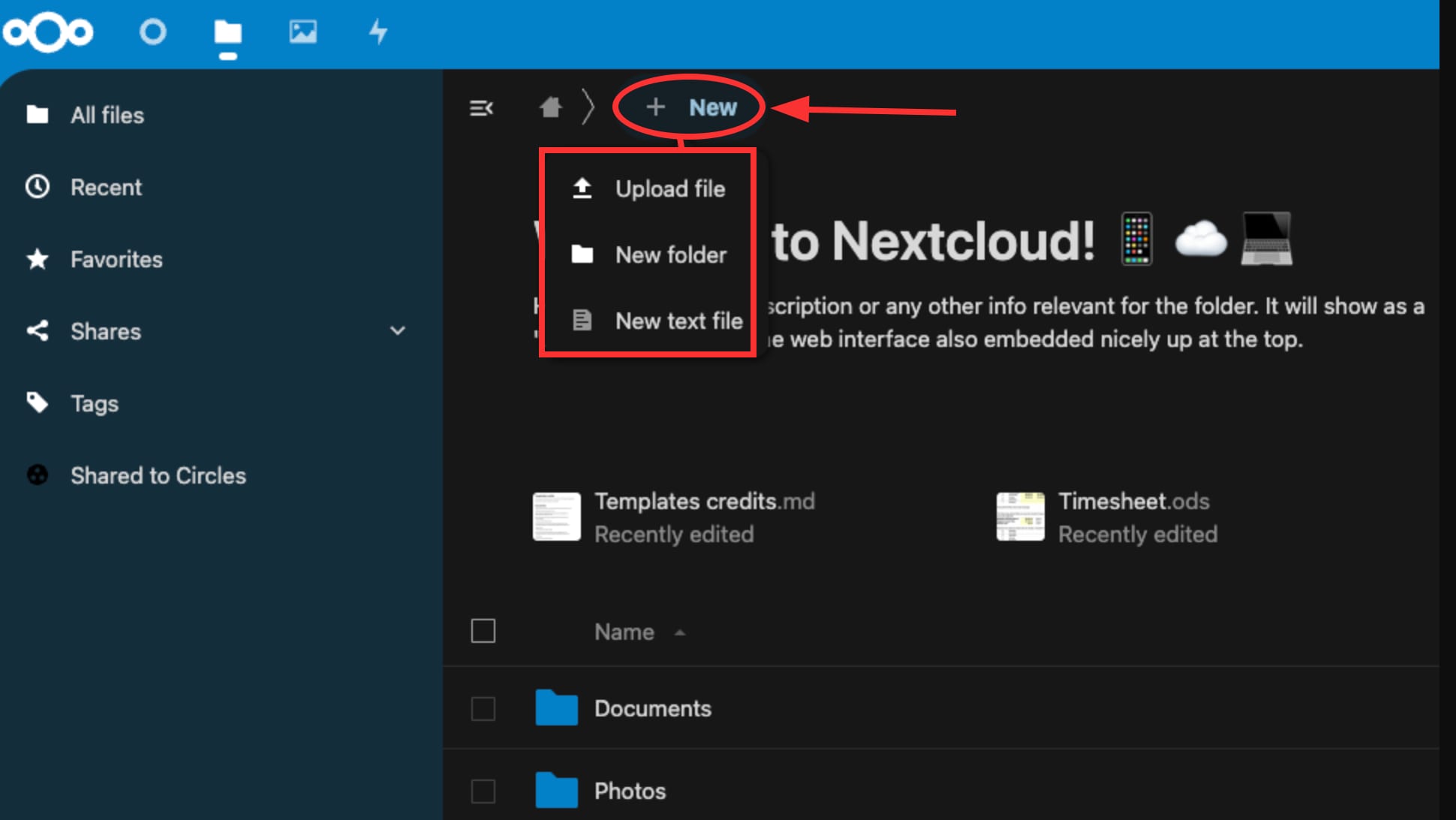
Use the web interface toupload filesto your Nextcloud instance. You can create folders, share files, and organize your data as needed:
As an admin, you cancreate user accountsfor family members, friends, or team members. Each user will have their own private space and the ability to share files with others.
Installing Additional Apps
Nextclouds functionality can be extended through various apps available in theNextcloud App Store. These include calendar tools, note-taking apps, and much more.
To access the app store, click on theAppsmenu in the Nextcloud interface:
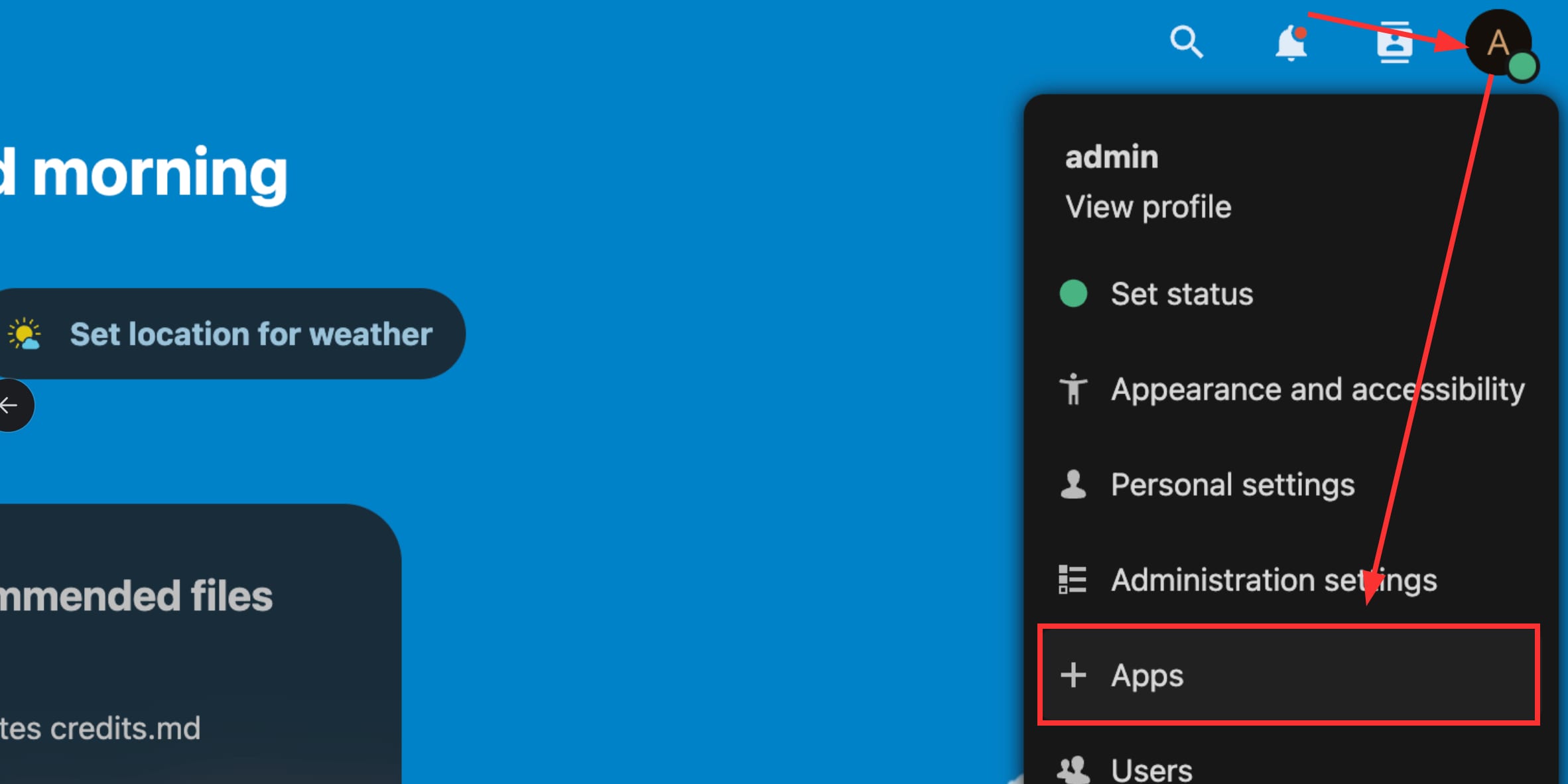
Choose from the available apps and click onDownload and enableto add new features to your Nextcloud instance.
Data Backup and Security
Ensure the safety of your data by setting up regular backups and implementing security best practices:
Regularly back up your Nextcloud data and database. You can do this manually or set up automated scripts.
If not already enabled,configure HTTPSto encrypt data transmission. You can obtain a free SSL certificate fromLets Encrypt.
Nextcloud offers a flexible and secure platform that you can customize to meet your needs.
For more detailed information, refer to theNextcloud documentation?