How to Use the CloudPanel VPS Template
CloudPanelis an intuitive web hosting control panel designed to manage websites and applications easily. When you choose theUbuntu 24.04 64bit with CloudPanelVPS template on Hallo-Webseite.de, CloudPanel comes pre-installed. This guide will help you get started using CloudPanel on your Hallo-Webseite.de VPS.
Visit ourCloudPanel VPS hostingpage to learn more about the available plans.
Installing CloudPanel
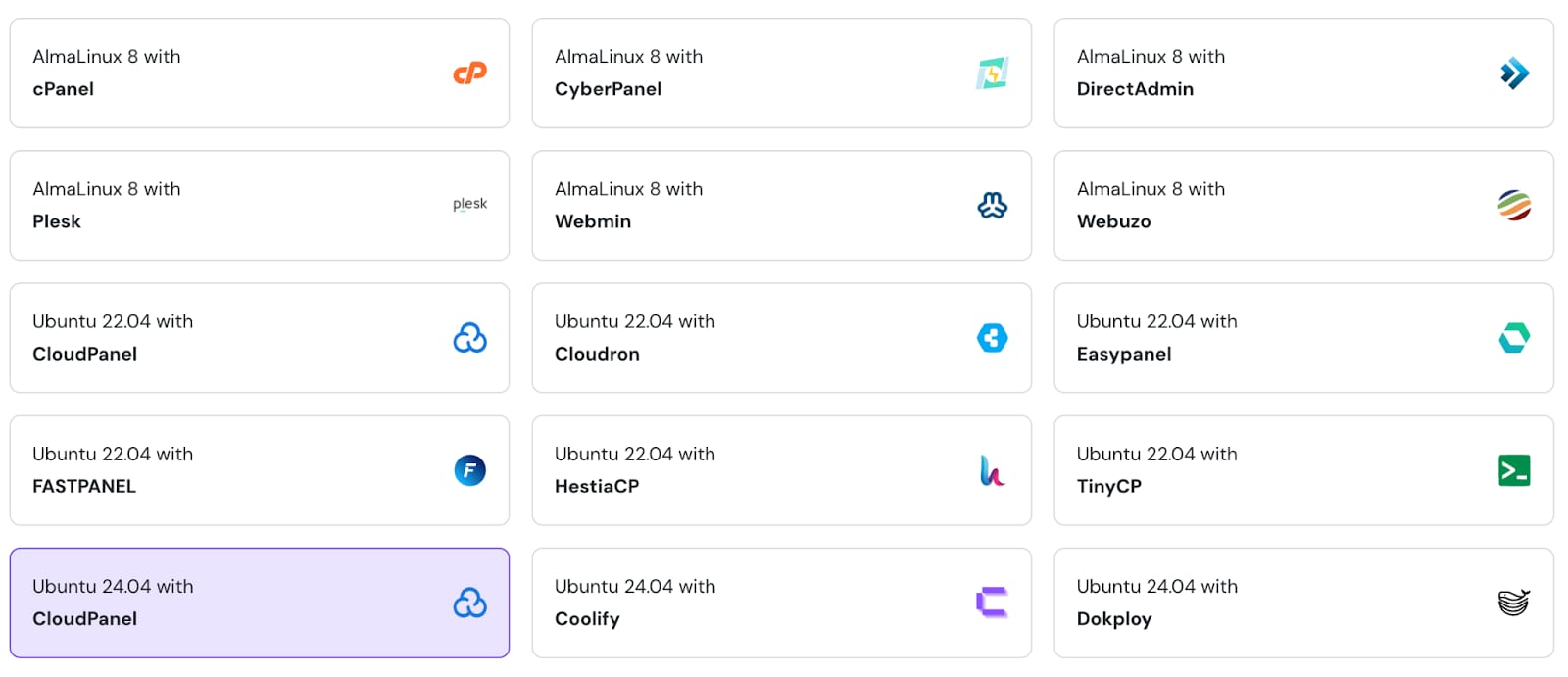
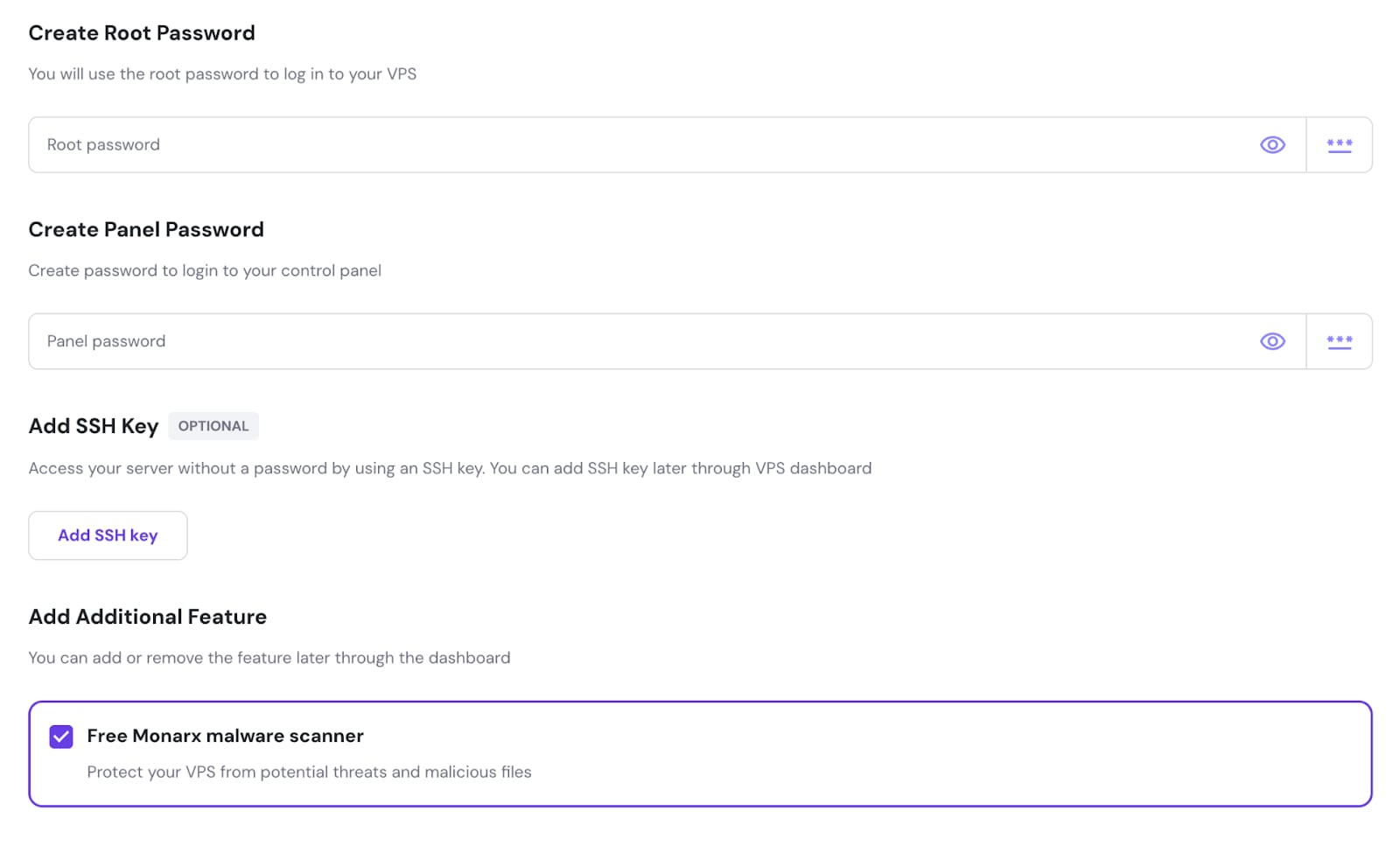
Create a root password and CloudPanel admin passwords for your VPS. Optionally you can add SSH keys for easier server access, and install a Monarx malware scanner for vulnerability scanning.
Accessing CloudPanel
To access CloudPanel, open VPS hPanel then go to the Panel access tab, and press on the login URL link.
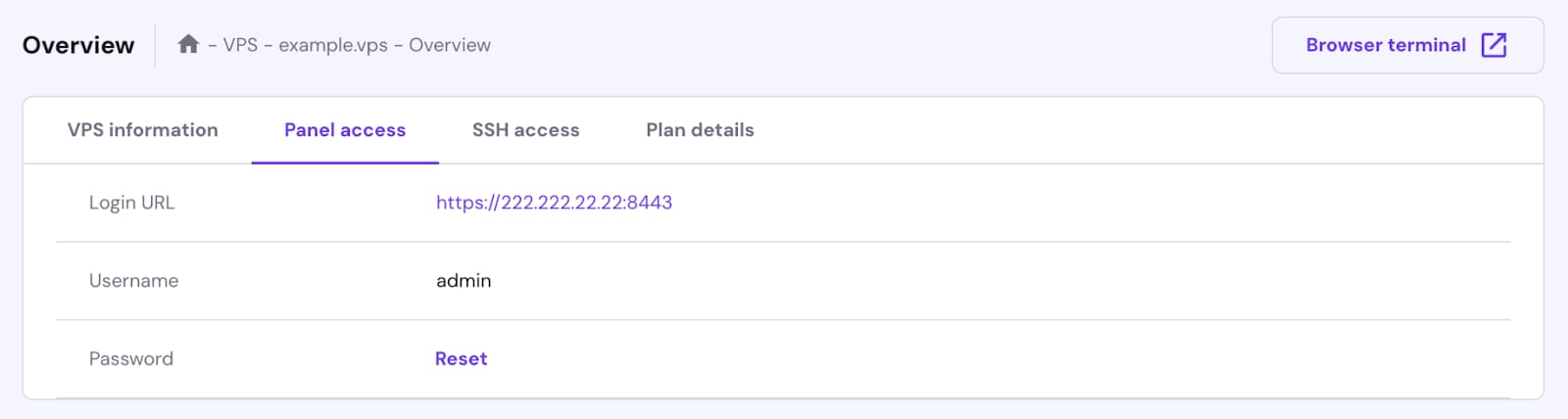
Or open a web browser and navigate to https://your-vps-ip:8443. Replace your-vps-ip with theIP address of your VPS.
If you wish CloudPanel to run on your domain,point your domain to a VPS IP addressandchange the server hostname?
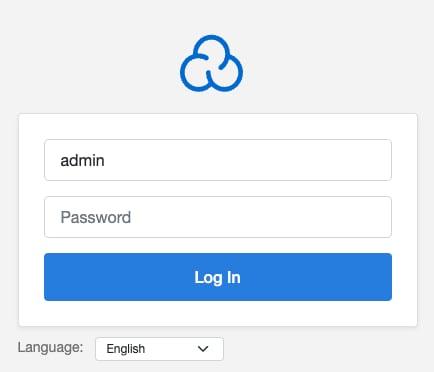
To log in to CloudPanel, use the credentials you provided during template installation:
Adding a Website to CloudPanel
Once logged in to CloudPanel, go to theSitestab in the dashboard and then click onAdd Site:

Select the type of website you want to add:
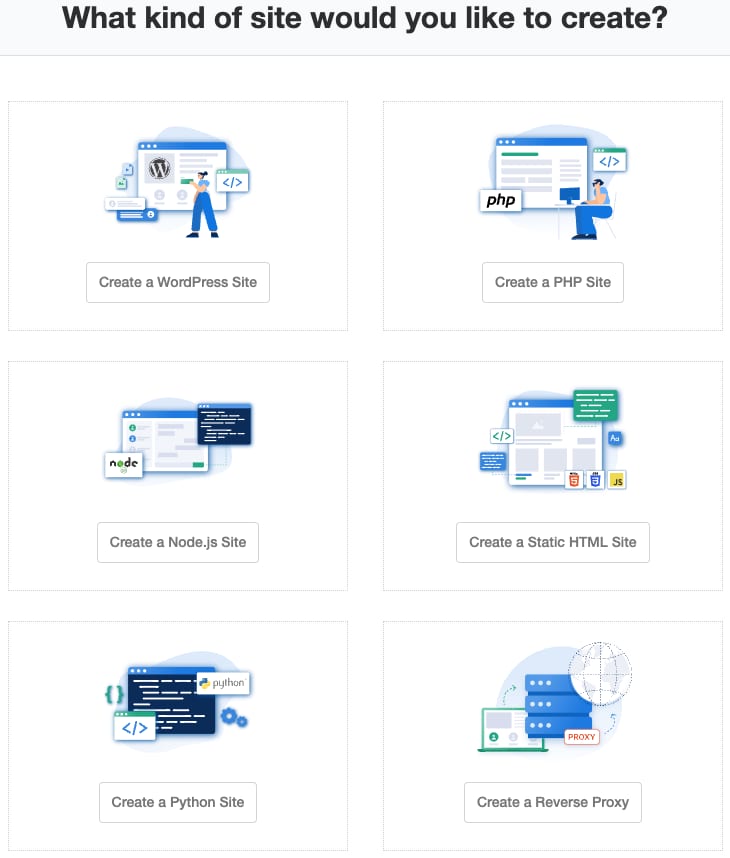
If, for example, you have selected a WordPress site to add, in the next step, youll have to provide details such as:
Domain name that you havepointed to VPS IP address
Site title
Site user name and password (CloudPanel)
Admin user name and password (WordPress)
Admin email (WordPress)
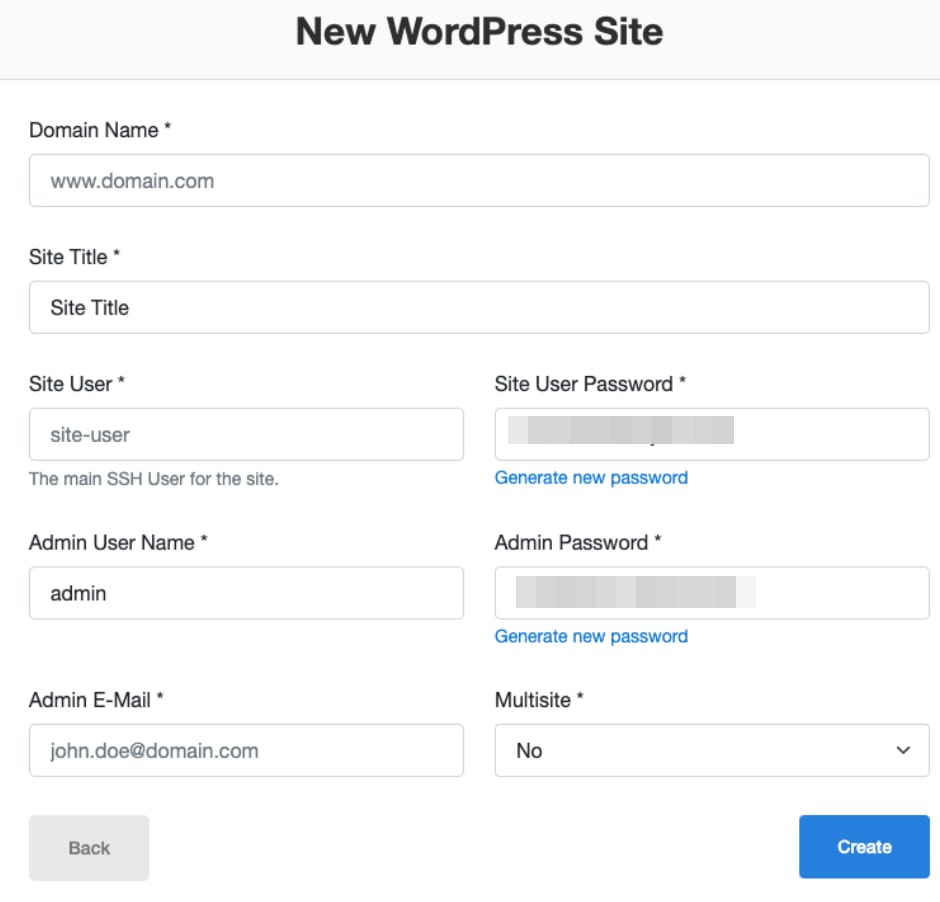
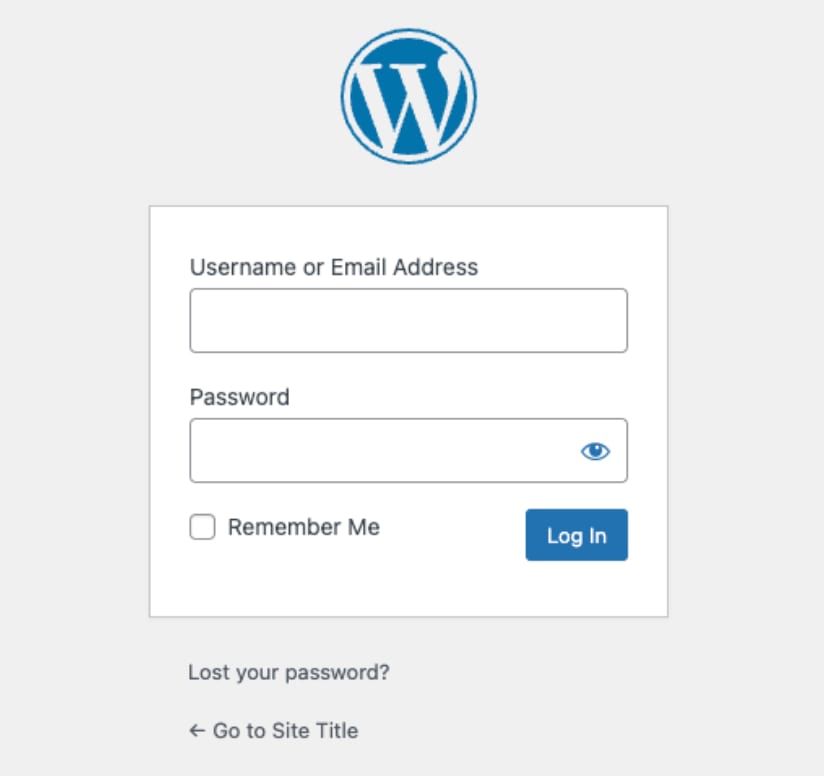
And thats it! Once installation is complete, you will be given a summary of your WordPress site and will be able to access its admin panel:
You have successfully accessed CloudPanel on your Hallo-Webseite.de VPS and added a new website.
For more detailed information and troubleshooting, refer to theCloudPanel documentation?