How to Use the GitLab VPS Template
By following this article, youll learn how to install and configureGitLabon anUbuntu 24.04virtual private server (VPS) available through hPanel. Well cover accessing GitLab, the initial admin login details, changing the GitLab domain, and essential security measures.
Havent signed up for a VPS plan yet? Check outGitLab VPS hosting options.
Installing the Ubuntu 24.04 with GitLab Template:
To select this OS template, go to theVPS sectionin hPanel and click on theserver you want to manage.
In the sidebar, go toOS & Panel?Operating Systemand find the sectionChange your Operating System. SelectApplications, then select the templateUbuntu 24.04 with GitLab, and, finally, click onChange OS:
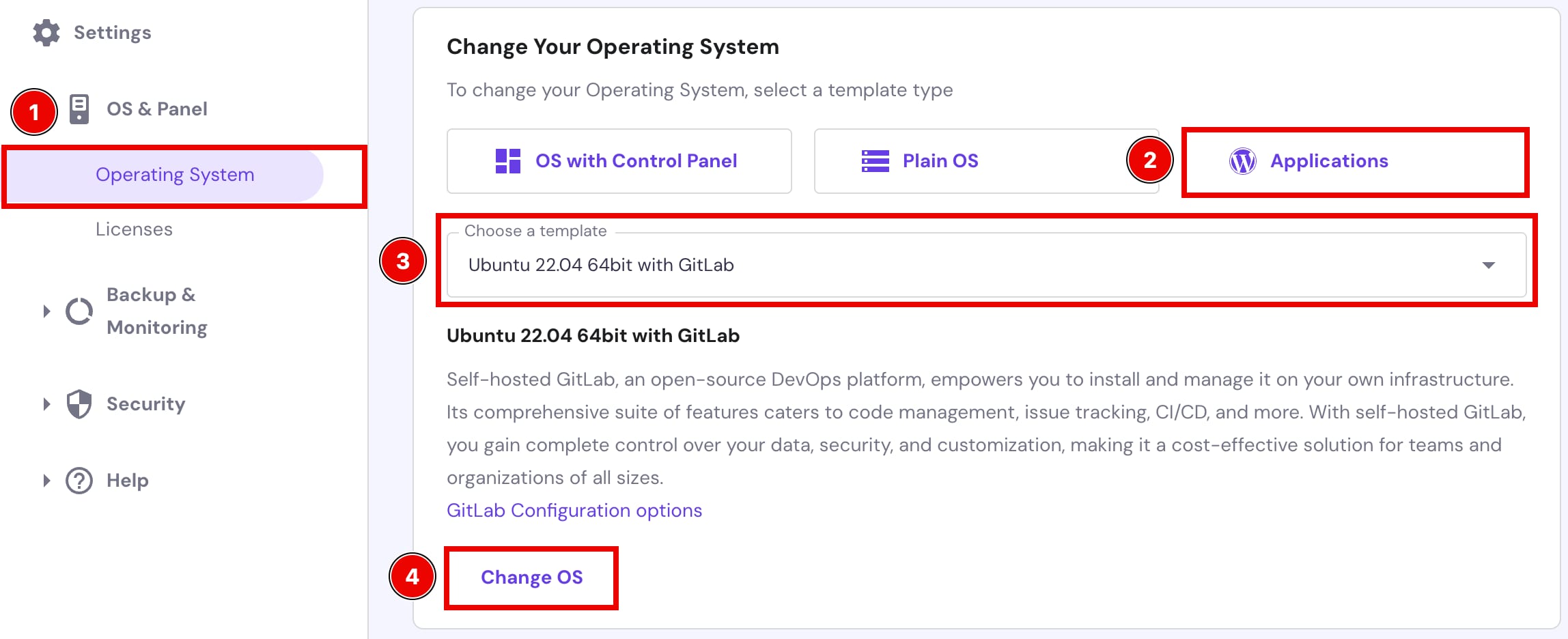
Once the installation is complete, access GitLab through the server IP or hostname provided in your Hallo-Webseite.de VPS dashboard.
Initial Admin Login Details
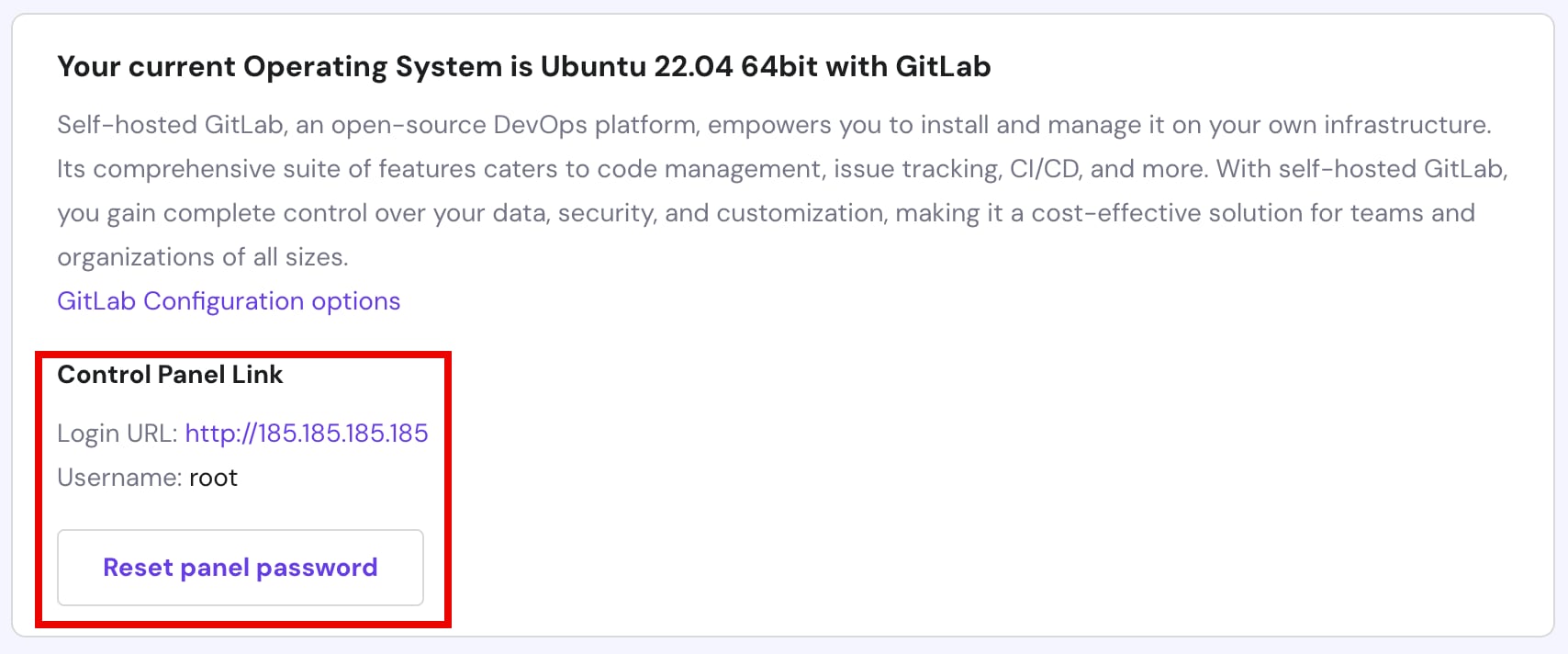
Use the following credentials to access the GitLab admin panel:
Username:root
Password: the one set during the OS installation; learn how to reset panel password
Changing the GitLab Server Domain
If you want GitLab Enterprise to redirect to your domain instead of the servers hostname,edit the configuration fileaccordingly and then run a reconfiguration command.
To get started, open the following file with your preferred text editor. This example uses
vim:<code>vim /etc/gitlab/gitlab.rb</code>
Once youre in the file, search for
the external_urlline. This will likely appear similar to the following with the http and your IP address information:<code>/etc/gitlab/gitlab.rb## GitLab URL##! URL on which GitLab will be reachable.##! For more details on configuring external_url see:##! https://docs.gitlab.com/omnibus/settings/configuration.html#configuring-the>##!##! Note: During installation/upgrades, the value of the environment variable##! EXTERNAL_URL will be used to populate/replace this value.##! On AWS EC2 instances, we also attempt to fetch the public hostname/IP##! address from AWS. For more details, see:##! https://docs.aws.amazon.com/AWSEC2/latest/UserGuide/instancedata-data-retri>external_url 'http://domain.tld'</code>
After that, enter the following command to apply the changes:
<code>gitlab-ctl reconfigure</code>
Adding an SSL to GitLab Server
Update the last line, i.e.,
external_url 'http://domain.tld'by changinghttptohttpsand insertingyour own domain name. This way, youll be automatically protected by aLets Encryptcertificate:<code>/etc/gitlab/gitlab.rb## GitLab URL##! URL on which GitLab will be reachable.##! For more details on configuring external_url see:##! https://docs.gitlab.com/omnibus/settings/configuration.html#configuring-the>##!##! Note: During installation/upgrades, the value of the environment variable##! EXTERNAL_URL will be used to populate/replace this value.##! On AWS EC2 instances, we also attempt to fetch the public hostname/IP##! address from AWS. For more details, see:##! https://docs.aws.amazon.com/AWSEC2/latest/UserGuide/instancedata-data-retri>external_url 'https://domain.tld'</code>
Next, you need to add youremail addressforLets Encrypt. Find the
letsencrypt['contact_emails']line, uncomment it by deleting the hash symbol#, and then add your information:<code>/etc/gitlab/gitlab.rbletsencrypt['contact_emails'] = ['name@example.tld']</code>
Once you make these changes, save and close the file. Then run the following command toreconfigure GitLab:
<code>gitlab-ctl reconfigure</code>
And thats it! Youve successfully set up aGitLabself-hosted server on anUbuntu 24.04 VPSprovided by Hallo-Webseite.de.
Learn more:Configuration options for Linux package installations | GitLab